Part of: Quotes and leads you never followed up
Follow-ups
Quotation follow-up email: templates for industrial and MRO distributors
For industrial and MRO distributors: three short quotation follow-up emails, sent on day 2, day 7 and three days before expiry, as replies in the original quote thread.
For owners and sales managers at industrial and MRO supply houses who want every open quote chased on time, with three quotation follow-up emails and a weekly open-quote list.
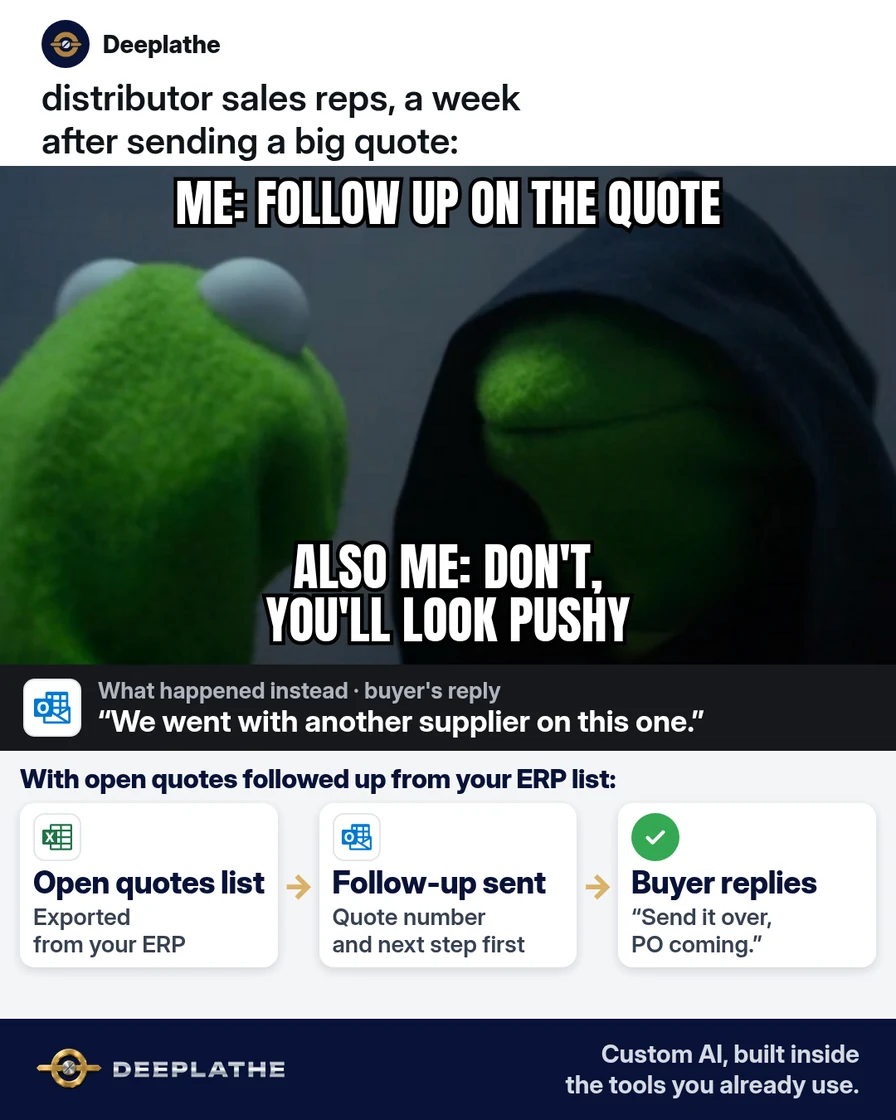
It's Thursday afternoon, and a purchasing agent tells your inside rep the order went to another distributor. Your quote for the bearings and seals went out nine days ago with good pricing and stock on the shelf. Nobody sent a quotation follow up email, so the buyer took the supplier who checked in. The quote was fine. The silence lost it.
The short answer
Every open quote gets three short emails: one on day 2, one on day 7 and one three days before the quote expires. Send each follow-up as a reply in the original quote thread, so the buyer has the part numbers and pricing in front of them. Pull the open-quote list from your ERP or CRM every Monday, and let AI write the three emails once.
Why open quotes go cold
Inside sales is built to react. The phone rings, an order needs entering, a customer wants a price on a cross-reference, and the rep handles it. A quote that already went out doesn't ask for anything, so it slides to the bottom of the pile.
On the buyer's side, your quote is one of several. The purchasing agent asked two or three suppliers for the same line items and is waiting for a reason to pick one. Price matters, but so do lead time, stock and who seems easiest to work with. A short note that confirms stock or answers a question often tips that choice.
Your ERP already knows which quotes are open, who the buyer is and when the pricing expires. What's missing is a habit that turns that list into emails every week, at the same points in the quote's life. The steps below set that habit up.
Floor vote
What happens to most of your open quotes after they go out?
One vote per device. Change it any time.
Loading votes…
Step 1: Pull your open-quote list every Monday
Start with the system where your quotes live. You only need open quotes from the last 30 days, with the buyer's email and the expiry date.
NetSuite. Quotes are called estimates. Each estimate has an Expires field in its primary information, and NetSuite marks an estimate Expired once that date passes. Build a transaction saved search with Type = Estimate, Status = Open and Main Line = True. Add the customer, contact email, document number, expiry date and sales rep as result columns, sort by expiry date, and export it.
HubSpot. Go to Revenue > Quotes (click More first if you see it). Use the tab for quotes expiring soon, or filter by Status and Owner to work the list on screen. To get a spreadsheet, click Export at the top of the table; the export includes all quotes, not just your filtered view, so sort and filter the file afterward. You need Super Admin or export permission.
Epicor Prophet 21, Infor SX.e or CloudSuite Distribution. All three track open quotes separately from orders. Ask whoever runs your ERP for an open-quote report you can export to Excel, or search your vendor's help center for "open quotes". Don't build anything custom yet. A plain export is enough.
Google Sheet. If quotes live in a spreadsheet, add a Status column and filter it to Open.
Whatever the source, trim the export to these columns:
Quote # | Customer | Buyer first name | Buyer email | Quote date | Expires | Rep
Leave out cost, margin and pricing notes. The emails don't need them, and a sheet like this gets forwarded around.
Step 2: Write the three quotation follow-up emails with AI
Paste this prompt into ChatGPT, Claude, Gemini or Copilot. It only uses placeholders, so no customer data goes into the chat:
You write for an independent industrial and MRO supply distributor.
Write three short follow-up emails to a purchasing agent who received
our quotation [QUOTE #] for [ITEM SUMMARY].
1) Day 2: confirm they got the quote, restate the lead time
   [LEAD TIME] and stock status, and ask one question about the
   application or quantity.
2) Day 7: offer one useful option, such as an alternate part number,
   a different pack quantity or a split shipment. Ask if the quote
   is still on their list.
3) Three days before [EXPIRY DATE]: say the pricing is good until
   that date and that we can re-quote after it. Ask if they want us
   to hold it or close it out.
Blanks to use: [BUYER FIRST NAME], [QUOTE #], [ITEM SUMMARY],
[LEAD TIME], [EXPIRY DATE], [REP NAME], [DIRECT LINE].
Rules: under 90 words each, plain words, no pressure, no fake urgency,
no discounts. Each email ends with one question a buyer can answer
in one line.
Read every draft and fix anything you can't stand behind, like a lead time you haven't confirmed. Here's the shape the day-2 email should take:
Hi [BUYER FIRST NAME],

Checking that quote [QUOTE #] for [ITEM SUMMARY] reached you.
Everything on it is [LEAD TIME], and the pricing holds until
[EXPIRY DATE].

Is the quantity on the quote what you'll order, or should I
re-run it at a different break?

[REP NAME]
[DIRECT LINE]
And the expiry email:
Hi [BUYER FIRST NAME],

The pricing on quote [QUOTE #] is good through [EXPIRY DATE].
After that I'm happy to re-quote, but costs on some lines may move.

Should I hold it for a PO this week, or close it out for now?

[REP NAME]
Step 3: Save the emails as Gmail templates
In Gmail, open Settings > See all settings > Advanced, turn on Templates and save. Then write each email in a new message and save it with More options > Templates > Save draft as template. Name them "Quote day 2", "Quote day 7" and "Quote expiry".
In Outlook, keep the three emails in a pinned note or a shared document and paste them in. The point is that nobody has to write a follow-up from scratch.
Step 4: Reply in the quote thread and schedule the next send
On Monday, go down the open-quote list one row at a time. Search your sent mail for the quote number, open the thread and click Reply. Insert the right template, fill in the blanks and send it.
For the next touch, write it now and schedule it. In Gmail, click the arrow next to Send and choose Schedule send. Gmail allows up to 100 scheduled emails at a time. If the buyer replies or a PO arrives, delete the scheduled email and mark the quote won or closed.
The quotation follow-up schedule
- MonPull the listOpen quotes from the last 30 days
- Day 2Receipt checkDid it arrive, and is the quantity right?
- Day 7One useful optionAn alternate part, pack size or split ship
- Expiry -3Hold or closeThe pricing date and a yes/no question
The same schedule as a list:
- Monday, pull the list: open quotes from the last 30 days, seven columns.
- Day 2, receipt check: did it arrive, and is the quantity right?
- Day 7, one useful option: an alternate part, pack size or split ship.
- Three days before expiry, hold or close: pricing date and a yes/no question.
Example (illustrative): a 12-person bearing and power transmission distributor
This is a walkthrough, not a client story. Picture a branch with three inside reps, two outside reps and one ERP. Quotes go out by email as PDFs, and each rep tracks their own open quotes in their head.
Every Monday morning, the sales manager runs the open-quote export and splits it by rep. Each rep works their rows before 10:00 and schedules the next email on each thread. Anything over a set dollar amount is flagged for the outside rep to call. Lost quotes get a reason code in the ERP.
At a glance
- Problem: open quotes going cold with no follow-up from inside sales.
- What was set up: a Monday open-quote export and three templates at day 2, day 7 and three days before expiry.
- Tools it lives in: the ERP, Gmail templates and Gmail scheduled send.
- Owner still does: decides which quotes deserve a call, approves any price change, reviews lost reasons.
- Payoff: not measured here. Track your quote-to-order rate for a month before and after.
Mistakes to avoid
- Starting a new email instead of replying in the thread. The buyer then has to go find your quote.
- Offering a discount in the follow-up. That's a pricing decision, and AI shouldn't make it. The rep or owner does.
- Quoting a lead time you haven't checked. Confirm stock before the day-2 email, or leave the line out.
- Chasing after a PO arrives. Check for a PO or a reply before each send.
- Letting quotes expire quietly. The expiry email is often the one that gets an answer.
Field check
Field check
Three questions. Honest answers. No score sent anywhere but this page.
01 / 03
Do your follow-ups go as replies in the original quote thread?
If it still doesn't work
If buyers don't reply at all, check who the quote went to. A general purchasing inbox often gets skipped. Ask for the buyer's direct email on the next quote.
If your ERP can't export open quotes cleanly, keep a shared Google Sheet with one row per quote and update it as quotes go out. If a long back-and-forth thread is hard to read before you reply, have AI summarize it first.
Doing this inside the tools you already use
Deeplathe is a team of developers and solution builders who build custom AI inside the tools a business already uses. For this job, a custom build could read the open quotes from your ERP or CRM every morning. It drafts each follow-up in the original quote thread with the real part numbers, lead time and expiry date, and skips any quote with a PO or a reply. Your reps approve the drafts, it sends from their own address, and it logs the touch on the quote.
You keep every pricing decision, and no quote goes quiet by accident. See how a custom build works.
FAQ
How long should you wait before following up on a quote?
Two business days is a good first gap. It's long enough for the buyer to open the quote and short enough that you're still on their list. Follow up again around day 7, then three days before the quote expires. If the buyer gave you a decision date, follow up the day after it.
What should a quotation follow-up email say?
Name the quote number and the items, restate the lead time or stock, and ask one question the buyer can answer in a line. Keep it under 90 words and send it as a reply in the quote thread. Leave out discounts and pressure. A useful detail, like an alternate part number, does more than a reminder.
How many times should you follow up on a sales quote?
Three emails is a reasonable limit for most quotes: day 2, day 7 and just before expiry. After that, close the quote out and record why. Large or strategic quotes can also get a phone call from the rep or the outside salesperson, but that's a judgment call, not a rule.
Can you automate quotation follow-up emails?
Partly, with tools you already have. Export open quotes from NetSuite, HubSpot or your ERP each week, use saved Gmail templates and schedule the next email from the thread. A NetSuite saved search can list estimates that expire this week, and HubSpot has a tab for quotes expiring soon. Keep a person on any price change or lead-time promise.
Keep these
- Pull open quotes every Monday.
- Reply in the quote thread, never a fresh email.
- Day 2, day 7, three days before expiry.
- Price changes are a person's call, not the AI's.
Sources
- Oracle NetSuite Help: Estimates
- HubSpot Knowledge Base: Manage quotes
- Gmail Help: Schedule emails to send
Related reading
Keep these
The working rules
Pull open quotes every Monday. Reply in the quote thread on day 2, day 7 and before expiry, so the buyer has the part numbers in front of them.