Part of: The process that only lives in your head
SOPs
Caregiver schedule template for a home care agency (free, in Google Sheets)
For home care agencies: a free Google Sheets caregiver schedule with one row per visit, dropdowns, color rules for open and double-booked shifts, and a shift-change text to copy.
It's Sunday night, and a caregiver texts that she can't make Mrs. R's 7 a.m. visit. You open three places to find who's free: a whiteboard photo, a group chat and last week's spreadsheet. By the time you find a backup, you're not sure anyone told the client's daughter. A caregiver schedule template the whole office runs the same way fixes most of this.
The short answer
Build one Google Sheet with three tabs: Caregivers, Clients and Schedule. Each visit gets one row with a date, times, a client code, a caregiver from a dropdown, a status and a "Notified" checkbox. A visit isn't done being scheduled until the caregiver has confirmed it in writing. Color rules flag open shifts, double-bookings and long weeks, so you see problems before the morning they happen.
Why caregiver schedules fall apart
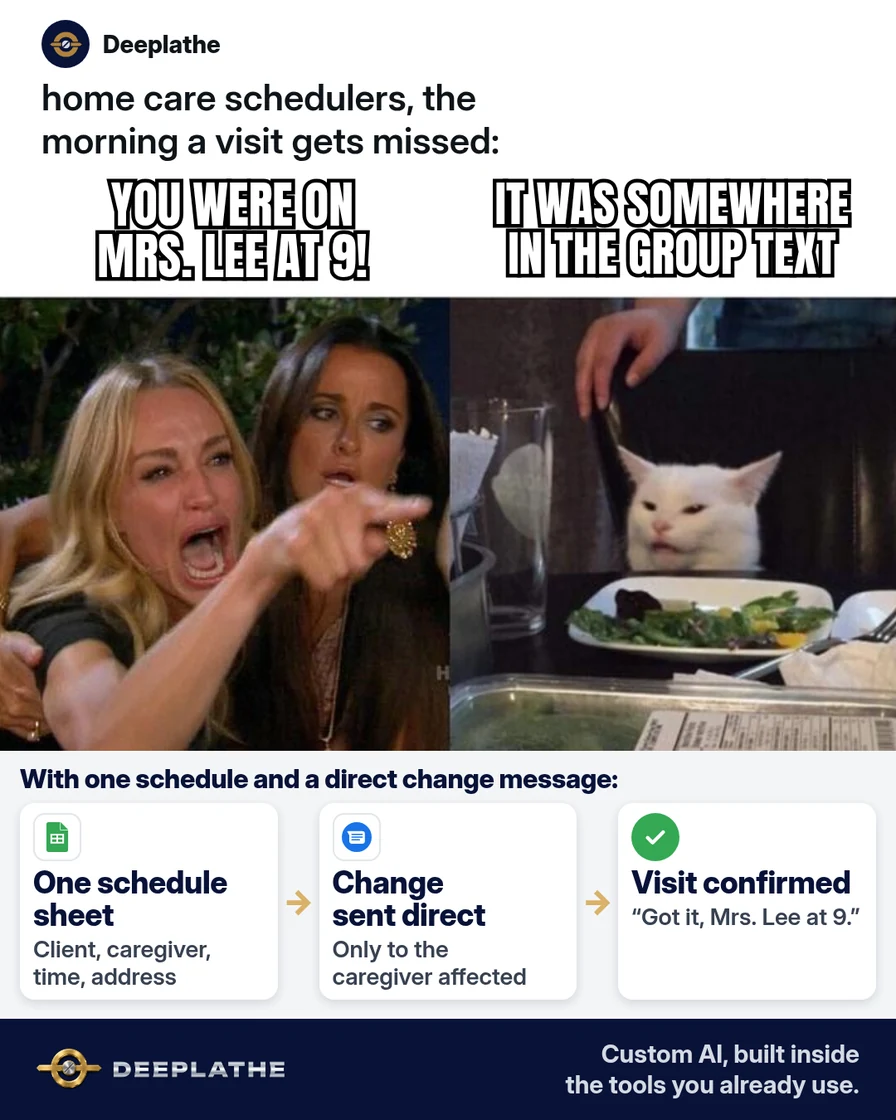
Most agencies don't lack a schedule. They have four: the owner's memory, the scheduler's sheet, caregivers' screenshots and the group chat. Every change has to be copied into each, and one always gets missed.
Home care also changes more than most schedules. Clients go into the hospital and caregivers get sick. A sheet built as a weekly grid, with names typed into boxes, can't show you who is double-booked or which visit nobody has confirmed.
The fix is to treat each visit as a record, not a box. One row per visit lets the sheet count, sort and highlight for you.
Floor vote
Where does your caregiver schedule live today?
One vote per device. Change it any time.
Loading votes…
Step 1: Set up the caregiver schedule template tabs
Open a new Google Sheet and name it "Care schedule". Create three tabs at the bottom: Caregivers, Clients and Schedule.
On the Caregivers tab, put one caregiver per row with these columns:
- Name: first name and last initial, the way you say it in the office.
- Phone: the number they read texts on.
- Can work: days and times, in plain words ("Mon-Fri days, no weekends").
- Max hours: the weekly hours they want or you allow.
- Hours this week: a formula you'll add in Step 3.
That puts Name in column A, Max hours in D and Hours this week in E.
On the Clients tab, use a short code for each client instead of a full name, like "C-014". Keep these columns:
- Client code: the short code.
- Area: a town or neighborhood, so you can match by drive time.
- Usual visits: for example, "Mon/Wed/Fri 8-12".
- Family contact: who you tell when the caregiver changes.
Keep addresses, care notes and anything medical in your client file, not in this sheet.
On the Schedule tab, put these headers in row 1, from column A to column K:
Week of | Date | Day | Client code | Start | End | Hours | Caregiver | Backup | Status | Notified
Here's what each one holds:
- Week of: the Monday of that week, so you can filter one week at a time.
- Date and Day: the visit date, and the weekday, with =TEXT(B2,"ddd") in C2.
- Client code, Start and End: who and when, with times typed like 8:00 AM.
- Hours: =(F2-E2)*24 in G2, which turns the time gap into hours.
- Caregiver and Backup: the person assigned, and who you'd call first if they drop.
- Status: Scheduled, Confirmed, Changed, Open or Cancelled.
- Notified: a checkbox you tick when the caregiver has the message.
Select row 1, then choose View, Freeze, 1 row so the headers stay put while you scroll.
Step 2: Add dropdowns so names are spelled one way
Typed names break formulas. "Maria G" and "maria g." look like two people. Dropdowns stop that.
Select column H (Caregiver) from H2 down. Click Data, then Data validation, then Add rule. Under "Criteria", choose Dropdown (from a range) and pick the Name column on the Caregivers tab. Click Done. Do the same for column I (Backup) and for column D, using the Client code column on the Clients tab.
For column J (Status), choose Dropdown and type the five values:
Scheduled
Confirmed
Changed
Open
Cancelled
For column K (Notified), select the cells and click Insert, then Checkbox.
By default, the sheet rejects anything not on the list. A new caregiver added to the Caregivers tab shows up in the dropdown.
Step 3: Make the caregiver schedule flag its own problems
Conditional formatting colors a row when something is wrong. Select A2:K500 on the Schedule tab. Click Format, then Conditional formatting. Under "Format cells if", choose Custom formula is and add these rules one at a time, each with its own color.
Open shifts, in red:
=$J2="Open"
Double-booked caregivers, in orange. This finds two visits for the same caregiver on the same date that overlap:
=AND($H2<>"",COUNTIFS($H$2:$H$500,$H2,$B$2:$B$500,$B2,$E$2:$E$500,"<"&$F2,$F$2:$F$500,">"&$E2)>1)
Changed visits nobody has told the caregiver about, in yellow:
=AND($J2="Changed",$K2=FALSE)
Then go to the Caregivers tab. Type the Monday you're checking in cell G1. In E2, next to the first name, add this and copy it down:
=SUMIFS(Schedule!G:G,Schedule!H:H,A2,Schedule!A:A,$G$1)
Select E2:E100, open Conditional formatting, choose Custom formula is and enter =$E2>$D2. Long weeks now turn red before payroll does.
Step 4: Fill the schedule the same way every week
Build next week on the same day every week. Here's a rhythm for a small office:
The weekly caregiver scheduling rhythm
- WedCopyCopy this week's rows to next week's dates
- ThuFixApply time off, new clients and hospital stays
- Thu pmFillRed rows first, then clear every orange overlap
- Fri noonSendText each caregiver her week, tick Notified on reply
- Daily 3pmCheck tomorrowFilter to tomorrow and look for any color
- Wednesday, copy: filter the Schedule tab to this week, copy the rows to the bottom, and change "Week of" and the dates to next week.
- Thursday, fix: apply known changes (time off, new clients, hospital stays) and set anything uncovered to Open.
- Thursday afternoon, fill: work the red rows first, then clear every orange overlap.
- Friday by noon, send: text each caregiver her week and tick Notified when she replies "confirmed".
- Every day at 3 p.m., check tomorrow: filter to tomorrow's date and look for red, orange or yellow.
Want help sorting a messy week? Paste only the Schedule columns into ChatGPT, Gemini or Claude, with client codes rather than names, and use this prompt:
Here is next week's caregiver schedule for a home care agency.
Columns: Date, Client code, Start, End, Caregiver, Status.
1) List any visit with Status "Open".
2) List any caregiver with two visits that overlap on the same date.
3) List any caregiver with less than [TRAVEL MINUTES] minutes
   between visits.
Do not suggest who to assign. Just list the problems.
[PASTE ROWS]
You decide who covers what, because you know which caregiver each client trusts.
Step 5: Send the shift-change message to caregivers
When a visit changes, set its Status to Changed. The row turns yellow until you send this and tick Notified:
Hi [CAREGIVER FIRST NAME], a schedule change for you:
[DAY] [DATE], client [CLIENT CODE] in [AREA]
New time: [START]-[END] (was [OLD TIME])
Please reply CONFIRMED so I know you have it.
If you can't make it, reply NO by [DEADLINE] and I'll find cover.
- [YOUR NAME], [AGENCY NAME]
For the Friday schedule, send one message per caregiver:
Hi [CAREGIVER FIRST NAME], here's your week of [MONDAY DATE]:
[DAY] [START]-[END] client [CLIENT CODE], [AREA]
[DAY] [START]-[END] client [CLIENT CODE], [AREA]
Total: [HOURS] hours.
Reply CONFIRMED, or tell me by [DEADLINE] what doesn't work.
To draft new versions, ask your AI tool: "Rewrite this shift-change text so it's friendly, under 50 words, and still asks for CONFIRMED." Keep client names and addresses out of the prompt. Send the real details from your own phone or texting tool.
Switch Status to Confirmed only when the caregiver replies. Then tell the family contact what changed.
Example (illustrative): an agency with 25 caregivers
This is a walkthrough, not a client story. Picture a family-owned agency with an owner, one scheduler and about 25 caregivers covering 40 clients.
On Wednesday, the scheduler copies this week's rows forward. On Thursday, she marks two visits Open for a caregiver's vacation, fills them from the Backup column, and fixes one orange overlap. By Friday noon, every caregiver has her week by text.
At a glance
- Problem: schedule changes living in a whiteboard, a group chat and a sheet at once.
- What was set up: one Google Sheet with dropdowns, color rules and a weekly rhythm.
- Tools it lives in: Google Sheets and the office phone's texting.
- Owner still does: decides who covers hard visits and talks to families.
- Payoff: not measured here. Count missed or late visits for a month before and after.
Mistakes to avoid
- Putting care notes or diagnoses in the schedule. Keep the sheet to who, where and when.
- Counting a sent text as confirmed. Confirmed means the caregiver replied.
- Letting AI pick the cover caregiver. It doesn't know who the client trusts.
- Editing in two places. If a change isn't in the sheet, it didn't happen.
- Building the week on Sunday night. Thursday gives you time to fill gaps.
Field check
Field check
Three questions. Honest answers. No score sent anywhere but this page.
01 / 03
Is a shift only marked confirmed after the caregiver replies?
If it still doesn't work
If caregivers don't reply to texts, check that you're sending from one number they recognize, not a mix of personal phones. Agree on one deadline, like Saturday at noon, and call anyone who misses it.
If the sheet gets slow or you pass about 50 caregivers, look at home care scheduling software. AxisCare lists drag-and-drop shift changes, open shifts sent to chosen caregivers by text, email or its app, and alerts when someone nears overtime. AlayaCare lists recommendations for vacant visits and schedule updates that reach caregivers' mobile apps.
Doing this inside the tools you already use
Deeplathe is a team of developers who build custom AI inside the tools a business already uses. For this job, a custom build could read your Google Sheet every afternoon. It drafts the shift-change text for each yellow row and flags tomorrow's open visits for you. When a caregiver replies CONFIRMED, it updates the status and ticks Notified.
You still choose who covers each visit and approve every message before it goes out. See how a custom build works.
FAQ
What should a caregiver schedule template include?
One row per visit, with the date, weekday, client code, start and end time, hours, caregiver, backup caregiver, status and a "Notified" checkbox. Add tabs for caregivers and clients. Keep medical details out of the schedule.
How do you schedule caregivers for multiple clients?
Give every visit its own row, then sort by caregiver and date to see each person's day in order. Use a conditional formatting rule to flag overlapping visits, and leave travel time between clients in different areas. Build the week on the same day each week, and fill open shifts first.
How do you tell caregivers about schedule changes?
Send a short text with the day, date, client code, area and new time, and ask them to reply CONFIRMED. Don't treat the change as done until they reply. Tick a "Notified" box in your schedule when they do, then let the client's family know if anything changed for them.
Is there a free caregiver schedule app?
Google Sheets is free and works on phones, so it can carry a small agency a long way. Paid home care scheduling software like AxisCare or AlayaCare adds features like caregiver apps, open-shift alerts and visit verification. Check pricing directly with each vendor, since they mostly quote through demos.
Keep these
- One row per visit, one sheet for the whole office.
- Dropdowns for names, so formulas can count them.
- Confirmed means the caregiver replied.
- You pick the cover caregiver, not the AI.
Sources
- Google Docs Editors Help: Create an in-cell dropdown list
- Google Docs Editors Help: Use conditional formatting rules in Google Sheets
- AxisCare: Home care scheduling software features
- AlayaCare: Scheduling software
Related reading
Keep these
The working rules
One sheet, one row per visit. A shift isn't scheduled until the caregiver replies to confirm it, and the sheet colors problems before the morning they happen.