Part of: The process that only lives in your head
SOPs
Travel itinerary template in Google Docs for travel advisors (free copy)
For custom travel advisors: a free eight-section itinerary template in Google Docs, filled from your booking emails with AI and checked line by line before the client sees it.
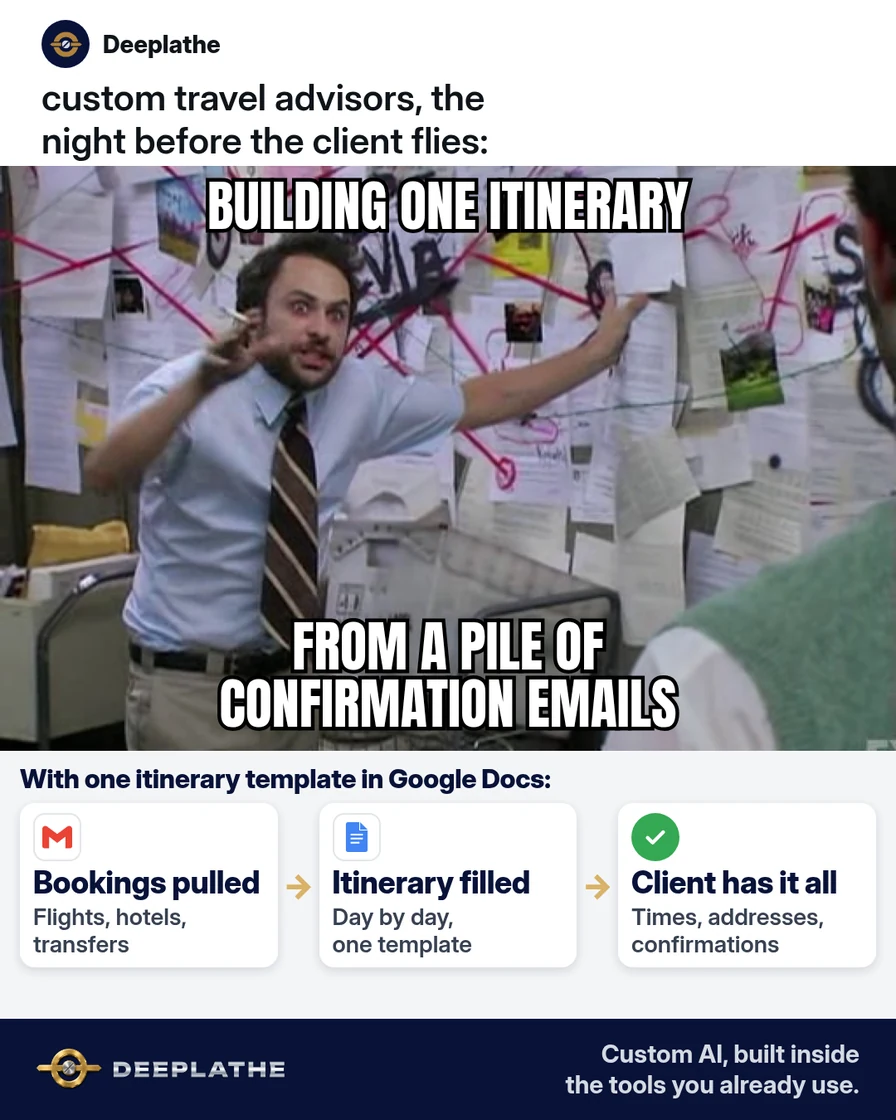
It's 9 p.m., and you're still building a ten-day itinerary for a couple heading to Portugal. The flights, two hotels, a private transfer and a wine tour are all booked. But every detail sits in a different confirmation email, and you're copying times into a document one line at a time. A good travel itinerary template in Google Docs, filled from those emails with AI, turns that evening into about half an hour of checking.
The short answer
Build one master travel itinerary template in Google Docs with the same eight sections every time: trip summary, contacts, flights, stays, transfers, day by day, documents and money, and what to do if plans change. Let AI pull the times and addresses out of your booking emails, but you check every line against the confirmation before the client sees it. Then make a copy for each new trip.
Why itineraries take hours to build
The hours don't go into the creative part. They go into retyping. A custom trip might have a dozen bookings, and each supplier sends its confirmation in its own format. One airline puts the departure time at the top, a hotel buries check-in at the bottom, and the tour operator sends a PDF.
So you open each email, find the date, the time, the address and the confirmation number, and type them into a document that you rebuild a little differently every trip. Nothing is wrong with your bookings. The problem is that there's no fixed shape to pour them into, and no help pulling the details out.
Fix both and the job changes. A fixed template means you never decide where things go. An AI assistant means you stop hunting through emails for times. What's left is the part that needs you: checking the facts and adding the personal notes your client is paying for.
Floor vote
Which part of building a client itinerary takes you longest?
One vote per device. Change it any time.
Loading votes…
Step 1: Copy this travel itinerary template into Google Docs
Open a new Google Doc, name it "MASTER - Client itinerary" and paste this outline. Each heading becomes a section of every itinerary you send.
[TRIP NAME] - [CLIENT LAST NAME] - [START DATE] to [END DATE]

1. TRIP AT A GLANCE
   Travelers: [NAMES AS ON BOOKINGS]
   Destinations: [CITY 1] > [CITY 2] > [CITY 3]
   Trip dates: [START DATE] to [END DATE]
   Your advisor: [YOUR NAME], [PHONE], [EMAIL]

2. WHO TO CALL
   Advisor during travel: [PHONE, HOURS]
   24/7 emergency line: [SUPPLIER OR AGENCY NUMBER]
   Local contacts: [DMC / GUIDE / DRIVER, PHONE]

3. FLIGHTS
   [DATE] | [AIRLINE + FLIGHT NO.] | [FROM] [DEPART TIME] > [TO] [ARRIVE TIME]
   Confirmation: [PASTE FROM EMAIL]   Baggage: [ALLOWANCE]

4. WHERE YOU'RE STAYING
   [HOTEL NAME] | [ADDRESS AS PLACE CHIP] | Check-in [TIME] [DATE]
   Check-out [TIME] [DATE] | Room: [TYPE] | Included: [BREAKFAST ETC.]
   Confirmation: [PASTE FROM EMAIL]

5. GETTING AROUND
   [DATE] [TIME] | [TRANSFER / CAR / TRAIN] | Pickup: [PLACE]
   Driver or company: [NAME, PHONE] | Confirmation: [PASTE FROM EMAIL]

6. DAY BY DAY
   Day [N] - [DATE] - [CITY]
   Morning: [PLAN, MEETING POINT, TIME]
   Afternoon: [PLAN]
   Evening: [DINNER RESERVATION, TIME, ADDRESS]
   Advisor note: [YOUR PERSONAL TIP]

7. DOCUMENTS AND MONEY
   Entry rules to check: [PASSPORT VALIDITY, VISA OR TRAVEL AUTHORIZATION]
   Paid: [WHAT IS PAID]   Due locally: [TAXES, TIPS, BALANCES]
   Insurance: [PROVIDER, POLICY CONTACT]

8. IF PLANS CHANGE
   Missed flight: [WHAT TO DO FIRST]
   Late arrival at hotel: [WHO TO TELL]
   Cancellation terms: [KEY DEADLINES]
Keep passport numbers, dates of birth and card details out of the itinerary entirely. The client has them, the suppliers have them, and a document that gets forwarded around doesn't need them.
Step 2: Set up the template with smart chips and building blocks
A few Google Docs features make the template faster to fill and nicer to use on a phone.
Place chips for every address. Type @ and the hotel or restaurant name, or go to Insert, then Smart chips, then Place. The client can tap the chip to open the spot in Google Maps or get directions. You can also paste a Google Maps link and press Tab to turn it into a chip.
Date chips for every day. Type @date or a date like "@May 14" so each day heading carries a real date.
Custom building blocks for sections you reuse. If you're on an eligible Google Workspace work account, highlight a section you write often, such as your "If plans change" text or a standard Lisbon transfer note. Right-click it, choose Save as custom building block, name it and select Create. Next time, type @ plus the block's name, or go to Insert, then Building blocks, then Custom building block. Google saves these in a Drive folder called "Custom Building Blocks (auto-generated)".
One copy per trip. Never edit the master. For each new trip, open it and use File, then Make a copy, and name the copy with the client's last name and trip dates.
Step 3: Fill the itinerary from booking emails with AI
This is where the hours come back. Pick the route that matches your setup.
Gemini in Gmail or Docs. This needs an eligible Google Workspace or Google AI plan. Open the trip's copy in Google Docs and select Ask Gemini at the top right. Under Add sources, open Gemini search settings and make sure Gmail search is on. In Gmail, the same Ask Gemini panel can find details like flight times in your inbox. Paste this prompt:
Search my Gmail for booking confirmations for the trip to [DESTINATION]
from [START DATE] to [END DATE], from these suppliers: [AIRLINE],
[HOTEL 1], [HOTEL 2], [TRANSFER COMPANY], [TOUR COMPANY].

For each booking, list only:
- type (flight, hotel, transfer, tour)
- date
- start time and end time, with the local time zone
- place names and addresses
- what's included (breakfast, baggage, guide)
- cancellation deadline, if the email states one

Sort everything by date and time. Use the headings FLIGHTS,
WHERE YOU'RE STAYING, GETTING AROUND and DAY BY DAY.
Write "[CONFIRMATION]" where a confirmation number goes. Do not
include traveler dates of birth, passport, payment or loyalty numbers.
If a detail is missing or unclear, write "CHECK" instead of guessing.
Copy the answer into the matching sections of your doc.
ChatGPT, Claude or Copilot. Open each confirmation, copy the booking details only, and delete names, passport numbers, dates of birth, card digits and loyalty numbers before you paste. Then use the same prompt, starting at "For each booking". Our guide to removing private details before you paste into ChatGPT shows what to cut.
Either way, you paste the confirmation numbers yourself, straight from the emails. They have to be exact, and they're the one thing a client shows at a counter.
Step 4: Check every line and send the itinerary
AI can misread a time zone or move a flight to the wrong day. Before you send, go line by line against the confirmations:
[ ] Every flight: date, flight number, times, airport codes
[ ] Every hotel: check-in and check-out dates match the nights booked
[ ] Every transfer lines up with the flight it meets
[ ] Every "CHECK" is resolved, none left in the doc
[ ] Every confirmation number pasted from the original email
[ ] Place chips open the right address
[ ] Day-by-day has your personal notes, not just bookings
Then share it. In Google Docs, select Share, add the client's email and set them to Viewer, or use File, then Download, then PDF document if they prefer a file.
The itinerary workflow
- OnceBuild the master30 minutes: place chips and building blocks
- New tripMake a copy1 minute, named for the client and dates
- After bookingRun the AI promptAgainst the trip's confirmation emails
- Before sendingCheck every linePaste confirmation numbers, add your notes
- Any changeUpdate the same docThe client's link always shows the latest
The same workflow as a list:
- Once, 30 minutes: build the master template with place chips and building blocks.
- New trip, 1 minute: File, then Make a copy, named for the client and dates.
- After booking: run the AI prompt against the trip's confirmation emails.
- Before sending: check every line, paste confirmation numbers, add your notes.
- Any change: update the same doc, so the client's link always shows the latest version.
Example (illustrative): a two-advisor custom travel agency
This is a walkthrough, not a client story. Picture an owner and one advisor who plan custom trips in Europe, with bookings landing in a shared Google Workspace inbox.
The owner builds the master template once and saves her standard "If plans change" section and two transfer notes as custom building blocks. For each trip, the advisor makes a copy, runs the Gemini prompt, and pastes the results into the right sections. The owner reads the day-by-day, adds her restaurant notes and checks the transfer times against the flights. Then she shares the doc with the client as a viewer.
At a glance
- Problem: itineraries rebuilt from scratch out of a dozen confirmation emails.
- What was set up: one master Google Docs template, an AI prompt, and a checklist.
- Tools it lives in: Gmail, Google Docs and Gemini.
- Owner still does: checks every line, adds personal notes, decides what goes in.
- Payoff: not measured here. Time your next three itineraries and compare.
Mistakes to avoid
- Letting AI guess. A missing time should say "CHECK", never a best guess.
- Pasting passport or card details into a chat tool. Itineraries don't need them, and neither does the AI.
- Editing the master. One slip and every future trip carries the last client's hotel.
- Mixing time zones. Write every time as local time where it happens.
- Letting AI decide the plan. Pacing, which restaurant, when to add a rest day: that's your expertise and what clients pay for.
Field check
Field check
Three questions. Honest answers. No score sent anywhere but this page.
01 / 03
Do you copy a master template instead of editing the last trip?
If it still doesn't work
If Gemini can't find a booking, the confirmation is probably a PDF attachment or came to a different inbox. Open it, copy the text, and use the ChatGPT route for that booking. If it still misses things, ask for one booking at a time instead of the whole trip.
If you already pay for an itinerary platform, check its import first. Travefy, for example, gives each itinerary its own email address. You forward original confirmation emails from airlines, hotels and car rental companies, and it imports them from over 1,500 supported suppliers. It doesn't import from wholesalers, complex FIT itineraries or supplier PDFs, so those still go through the template.
Doing this inside the tools you already use
Deeplathe is a team of developers who build custom AI inside the tools a business already uses. For this job, a custom build could watch your bookings inbox, sort each new confirmation into the right trip, and fill that trip's Google Doc in your template's format. It flags anything unclear as "CHECK" and never copies passport or payment details. You review the doc, add your notes and share it, and the build updates the itinerary when a supplier sends a change.
You keep the client relationship, and the retyping stops. See how a custom build works.
FAQ
What should a travel itinerary include?
A client itinerary should include a trip summary, who to call, flights, hotels with check-in and check-out times, transfers, a day-by-day plan, documents and money notes, and what to do if plans change. Add confirmation numbers for each booking and addresses the client can tap. Leave out passport numbers and card details.
Does Google Docs have a travel itinerary template?
Google Docs doesn't need one built in. You can paste the outline in this article into a blank doc, save it as your master, and use File, then Make a copy for each trip. On eligible Workspace accounts, custom building blocks let you reuse sections you write often by typing @ and the block's name.
Should I use Google Sheets or Google Docs for an itinerary?
Use Google Docs for the itinerary the client reads, because it handles day-by-day notes, headings and place chips well. Google Sheets works better as your own booking tracker, with one row per booking. Some advisors keep both: the sheet for tracking and the doc for the client.
Is it safe to put booking emails into ChatGPT?
Only after you remove personal details. Copy the booking details, then delete traveler names, passport numbers, dates of birth, card digits and loyalty numbers before pasting. Paste confirmation numbers into the itinerary yourself. If you use Gemini inside your Google Workspace account, the prompt in this article still tells it to leave those details out.
Keep these
- One master template, a fresh copy for every trip.
- AI pulls the times, you check every line.
- Confirmation numbers come straight from the email.
- No passport, birth date or card details, anywhere.
Sources
- Google Docs Editors Help: Insert custom building blocks
- Google Docs Editors Help: Insert place chips
- Gmail Help: Collaborate with Gemini in Gmail
- Google Docs Editors Help: Use sources with Google Workspace with Gemini
- Travefy Help Center: How to forward booking confirmation emails
Related reading
Keep these
The working rules
Same eight sections every trip. AI pulls times and addresses from the booking emails, you check every line and paste the confirmation numbers yourself.