Part of: Quotes and leads you never followed up
Follow-ups
Timesheet reminder email for staffing agencies: send it every week automatically
For light-industrial staffing agencies: two timesheet reminder emails you can copy, and how Outlook or Gmail can send them every week on their own.
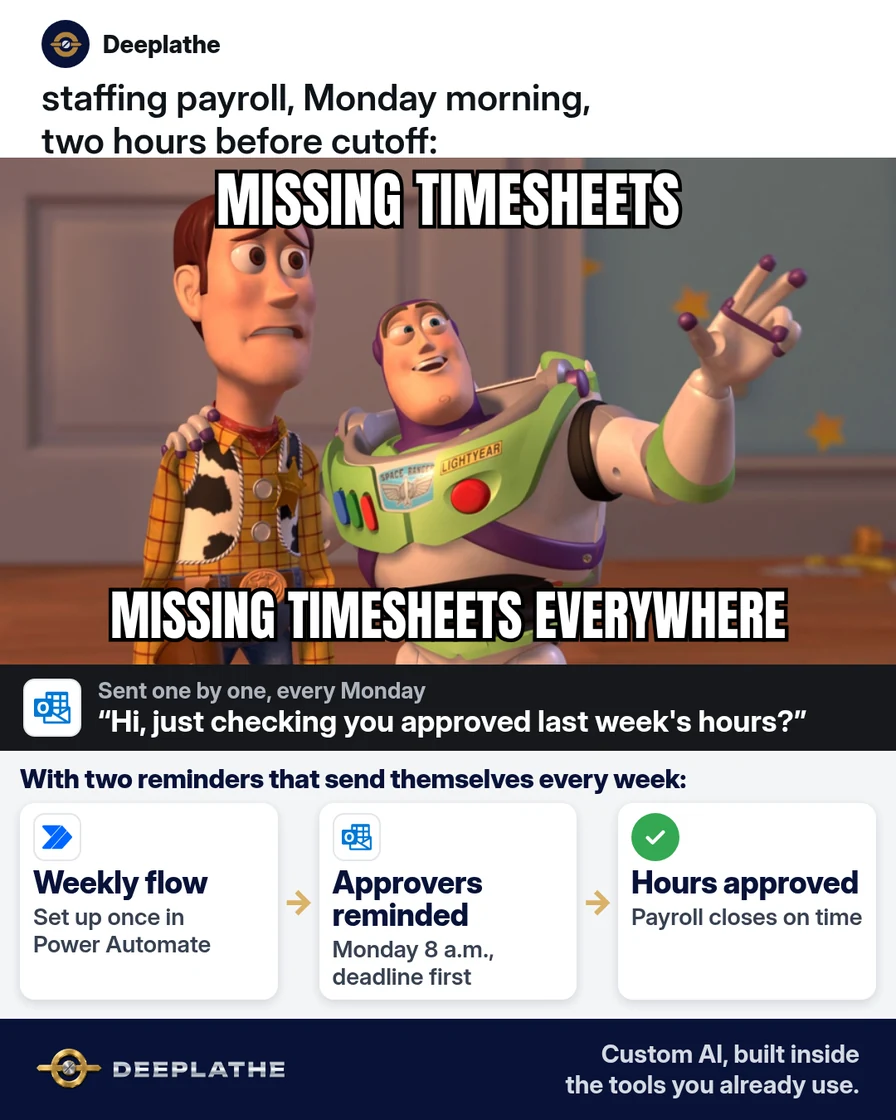
It's Monday at 10 a.m., payroll closes at noon, and eleven timesheets are still missing. Three client supervisors haven't approved last week's hours, and a forklift operator swears he submitted his. So your payroll coordinator spends the morning sending the same timesheet reminder email, one person at a time. Then the late ones turn into Tuesday corrections and an off-cycle check.
The short answer
Send two timesheet reminder emails on a fixed schedule every week. One goes to your associates when the work week ends, and one goes to client approvers before payroll cutoff. Write both once with AI, and let Outlook or Gmail send them automatically, so nobody has to remember. If your staffing software has its own timecard reminders, turn those on first.
Why timesheets come in late every week
In light-industrial staffing, hours pass through two sets of hands before you can pay them. The associate submits them, and the client's supervisor approves them. Either one can stall, and both have other jobs. A supervisor on a busy line doesn't think about your payroll cutoff until someone reminds them.
The reminder usually depends on one person in your office remembering, every single week. When that person is out, or buried in orders, the reminders go out late or not at all. Then payroll runs with missing hours, and every correction costs time and trust with the associate who got shorted.
A recurring email fixes the remembering part. The same message goes to the same people at the same time every week, with the cutoff spelled out.
Floor vote
What holds up payroll most weeks?
One vote per device. Change it any time.
Loading votes…
Step 1: Write the two timesheet reminder emails with AI
Paste this into ChatGPT, Claude, Gemini or Copilot. It uses placeholders, so no names or pay details go into the AI tool:
Write two short weekly timesheet reminder emails for a light-industrial
staffing agency.
1) To associates, sent when the work week ends: submit your hours
   for the week by [ASSOCIATE DEADLINE] through [HOW TO SUBMIT],
   so you get paid on time.
2) To client supervisors who approve hours, sent before payroll
   cutoff: please approve last week's hours by [CLIENT CUTOFF]
   in [WHERE TO APPROVE]. Say what happens if hours are late
   (the associate's pay may be delayed), without blaming anyone.
Use these blanks: [AGENCY], [ASSOCIATE DEADLINE], [CLIENT CUTOFF],
[HOW TO SUBMIT], [WHERE TO APPROVE], [PAYROLL CONTACT], [PHONE].
Rules: under 90 words each. Plain words, friendly, no threats.
Subject lines under 50 characters. Put the deadline in the first line.
Write a Spanish version of email 1 as well.
Here's the shape the client email should take:
Subject: Please approve hours by Monday 10 a.m.

Hi,

Please approve last week's hours by [CLIENT CUTOFF] in
[WHERE TO APPROVE]. Hours approved after that may be paid a week late,
and our associates count on that check.

Questions about a timesheet? Reply here or call [PAYROLL CONTACT]
at [PHONE].

Thanks,
[AGENCY] payroll
Check the deadline and the steps in each email against your real process before you use it.
Step 2: Schedule the timesheet reminder in Outlook with Power Automate
If your agency runs on Microsoft 365, use a scheduled cloud flow in Power Automate:
- Sign in to Power Automate and select Create, then Scheduled cloud flow.
- Name it "Client timesheet reminder." Set Repeat every to 1 Week, and pick the day and the start time.
- Select Create. In the designer, open the Recurrence trigger, choose your Time zone, and under On these days pick Monday. Set At these hours to 8 and At these minutes to 0.
- Add an action, search for Send an email (V2) and select it under Microsoft 365 Outlook.
- In To, enter your client approvers, separated by semicolons. Paste your subject and the email from Step 1.
- Save, then select Test and run it once, sending to yourself first.
Make a second flow for the associate email, set for Friday afternoon. Power Automate also lets you describe the flow to Copilot in plain words, for example: "Create a flow that runs Monday every week at 8 AM and sends an email reminding approvers to approve timesheets." Check every setting it fills in.
For a long client list, send to a distribution group instead of typing every address. Then the flow doesn't change when supervisors do.
Step 3: Or schedule it in Gmail with Apps Script
If you're on Google Workspace, Gmail's own Schedule send only sends once. To repeat it every week, use a free Apps Script. Go to script.google.com, select New project, and paste this:
function sendClientReminder() {
  GmailApp.sendEmail(
    'approvers@yourclientlist.com',          // a Google Group works best
    'Please approve hours by Monday 10 a.m.',
    'Hi,\n\nPlease approve last week\'s hours by Monday 10 a.m. in ' +
    '[WHERE TO APPROVE]. Hours approved after that may be paid a week late.' +
    '\n\nQuestions? Reply here.\n\n[AGENCY] payroll'
  );
}

function createWeeklyTrigger() {
  ScriptApp.newTrigger('sendClientReminder')
    .timeBased()
    .everyWeeks(1)
    .onWeekDay(ScriptApp.WeekDay.MONDAY)
    .atHour(8)
    .create();
}
Replace the address and the text. Run sendClientReminder once to test it and approve the permissions. Then run createWeeklyTrigger once. Google runs it every Monday around 8 a.m., in the script's time zone. Copy the pattern for the associate email on Fridays.
Timesheet reminder week (Monday noon payroll cutoff)
- Fri 4 p.m.AssociatesSubmit this week's hours
- Mon 8 a.m.Client approversApprove hours by 10 a.m.
- Mon 10 a.m.Payroll coordinatorCalls only who's missing
- Mon noonPayroll closesOn time
The same week as a list:
- Friday, end of shift: associates get the reminder to submit hours.
- Monday, 8 a.m.: client approvers get the reminder to approve hours.
- Monday, 10 a.m.: your payroll coordinator calls only the approvers still missing.
- Monday, noon: payroll closes on time.
Example (illustrative): a two-branch light-industrial agency
This is a walkthrough, not a client story. Picture an agency with two branches, about 300 associates out each week, and 40 client sites, using Microsoft 365.
The payroll coordinator writes the two emails, plus a Spanish version for associates, with AI. She builds two scheduled flows in Power Automate. The associate email goes out at 4 p.m. on Fridays, and the client email goes out at 8 a.m. on Mondays to a distribution group of approvers. At 10 a.m. Monday, she checks the approval report in the agency's staffing software and calls only the sites still missing.
At a glance
- Problem: missing timesheets and approvals every Monday morning.
- What was set up: two AI-written emails, sent by two weekly Power Automate flows.
- Tools it lives in: Outlook, Power Automate and the agency's staffing software.
- Owner still does: calls the sites still missing, fixes disputed hours, approves corrections.
- Payoff: not measured here. Count late approvals and off-cycle checks for a month before and after.
Mistakes to avoid
- One generic email to everyone. Associates and approvers need different asks and deadlines.
- No deadline in the first line. The cutoff is the whole message.
- Typing every client address into the flow. Use a distribution group or a Google Group.
- Forgetting holiday weeks. Pause or edit the flow when payroll cutoff moves.
- Letting AI change hours or approve timesheets. Hours are a pay record. A person checks every correction.
Field check
Field check
Three questions. Honest answers. No score sent anywhere but this page.
01 / 03
Do associates and client approvers get different reminders?
If it still doesn't work
If the reminder goes out but approvals still come in late, look at who receives it. The supervisor who approves hours is often not the person who signed the contract. Ask each site who approves, and update your list.
If the flow stops sending, open Power Automate and check the flow's run history for errors. A common cause is the connection to Outlook expiring after a password change. For Apps Script, check Executions in the script editor.
Doing this inside the tools you already use
Deeplathe is a team of developers who build custom AI inside the tools a business already uses. For this job, a custom build could check your staffing software for missing hours and approvals before cutoff. It sends each associate and approver a reminder that names their own site and week. Then it gives your payroll coordinator a short list of who's still missing, with phone numbers. You decide on corrections, and every reminder is logged.
Payroll closes on time, and the calls go only where they're needed. See how a custom build works.
FAQ
How do you write a timesheet reminder email?
Put the deadline in the subject and the first line, say exactly where to submit or approve, and keep it under 90 words. Write one version for the people who submit hours and one for the people who approve them. Sign it from a real contact with a phone number.
How do I send a recurring timesheet reminder in Outlook?
Outlook doesn't repeat an email on its own, but Power Automate does. Create a scheduled cloud flow, set the recurrence to weekly on your chosen day and time, and add the Microsoft 365 Outlook action Send an email (V2) with your reminder. Test it by sending to yourself first.
Can Gmail send a weekly reminder email automatically?
Not with Schedule send alone, which sends one email once. A short Apps Script with a weekly time-driven trigger can send the same email every week from your Gmail account. Set it up once at script.google.com and test it by sending to yourself.
When should timesheet reminders go out?
Send the associate reminder when the work week ends, while the hours are fresh. Send the approver reminder a few hours before payroll cutoff, early enough to chase anyone who misses it. For a Monday noon cutoff, Friday afternoon and Monday at 8 a.m. work well.
Keep these
- Two emails: one to submit, one to approve.
- The deadline goes in the first line.
- Send to a group, not a list of addresses.
- People fix hours. Automation only reminds.
Sources
- Microsoft Learn: Run a cloud flow on a schedule in Power Automate
- Microsoft Learn: Create flows for popular email scenarios in Power Automate
- Google for Developers: Installable triggers in Apps Script
- Google for Developers: ClockTriggerBuilder reference
Related reading
Keep these
The working rules
Two emails, one to submit and one to approve, sent at the same time every week. Your payroll coordinator only calls the ones still missing.