Part of: The process that only lives in your head
SOPs
ChatGPT for Word: set up the add-in and draft client letters without copy-paste
For estate planning firms that draft in Microsoft Word: install ChatGPT for Word, keep client data out of the sidebar, and use three paste-ready prompts for engagement and follow-up letters.
For estate planning firms that draft in Microsoft Word: install ChatGPT for Word, keep client data out of the sidebar, and use three paste-ready prompts for engagement and follow-up letters.
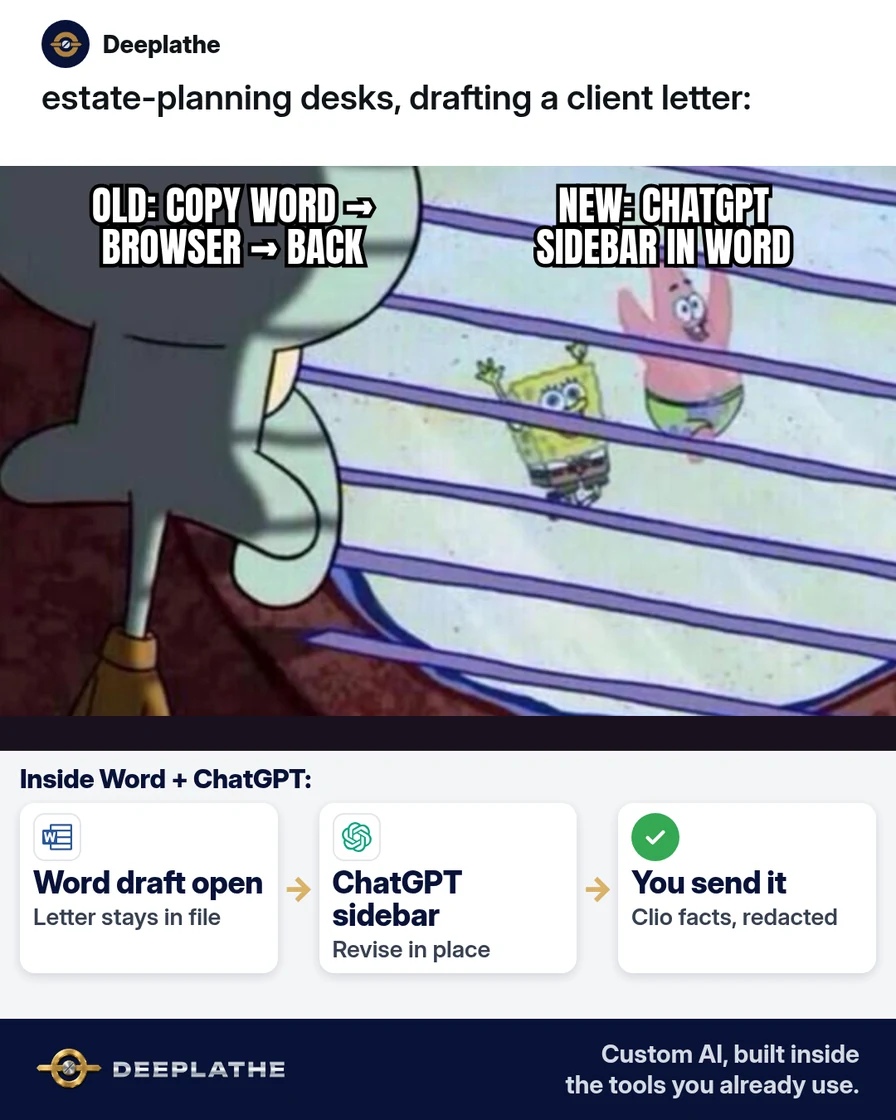
You finish a trust review at 4:40. The engagement letter still needs a clean first draft in Word. You copy the notes into a browser chat, wait, paste back, and watch the formatting break. Headers shift. Tracked changes vanish. You fix it by hand before the client leaves. That copy-paste loop is the job ChatGPT for Word is meant to cut.
The short answer
Install the ChatGPT Microsoft add-in once, open it from the Word ribbon, and draft or revise inside the document—never copy the whole file into a browser chat. Prefer a ChatGPT Business workspace for firm work: OpenAI says Business inputs and outputs are not used to train models by default. Still strip names, SSNs, and account numbers before you send text to the sidebar. Keep the lawyer in charge of every send.
Why ChatGPT for Word still feels hard to trust
Staff already use ChatGPT. They just do it the unsafe way: select a draft, paste into chatgpt.com, paste back into Word. Formatting dies. Nobody logs what left the firm. OpenAI’s ChatGPT Business release notes (September 2026) say ChatGPT for Word is available, uses the same Microsoft add-in as Excel and PowerPoint, and Word access is enabled by default from 1 October 2026. The buyer objection is data safety, not “does an add-in exist.” The fix is the sidebar plus a Business workspace plus the same placeholder rule you already use before any AI paste.
Floor vote
How do you draft client letters with AI today?
One vote per device. Change it any time.
Loading votes…
Step 1: Install ChatGPT for Word from Microsoft Marketplace
Use the official listing OpenAI links from its ChatGPT for Word help page (Microsoft Marketplace, “ChatGPT” add-in). One add-in covers Word, Excel, and PowerPoint—you do not need a separate Word plugin.
- Open the ChatGPT listing and choose Get it now.
- Finish the Marketplace install for your Microsoft account.
- Open Microsoft Word.
- Open ChatGPT from the Word ribbon.
- Sign in with your ChatGPT account. If you use a firm workspace, select that workspace.
If ChatGPT does not appear: your Microsoft 365 admin may need to allow the ChatGPT add-in for your users. Your ChatGPT workspace admin can also turn Word access on or off in the ChatGPT admin console. From 1 October 2026, Word access is enabled by default on the ChatGPT side—still check both places if the button is missing.
Step 2: Prefer Business for firm drafts (data controls)
For estate planning work, use a ChatGPT Business (or Enterprise/Edu) workspace when you can, not a personal Free or Plus login mixed with client matters. OpenAI’s ChatGPT for Word help states that in Business, Enterprise, and Edu workspaces, inputs and outputs are not used to train OpenAI models by default. Data use still follows your plan and data controls—read the Business privacy help before you roll this out.
Also know the limits OpenAI documents today:
- Add-in chats do not share history, memory, or skills with the browser ChatGPT app.
- The sidebar works on the open document; it does not pull other files from your PC. Paste notes into the prompt when you need context.
- Word usage is token-based at the model’s API rates and draws from your plan’s shared usage allowance. Check your plan’s credit page if volume is high.
Step 3: Redact before every sidebar request
Client letters often carry names, DOBs, and account references. AI does not need those to draft tone and structure. Swap them for brackets in a plain notepad first—or select only the safe sentences in Word—then ask ChatGPT to keep every [PLACEHOLDER] exactly as written. Put real details back yourself before the letter leaves Clio or your mail merge.
Copy this guard line into every prompt:
Some details are replaced with placeholders in square brackets
([CLIENT], [MATTER], [DATE], [AMOUNT]). Keep every placeholder
exactly as written. Do not invent names, dates, or legal advice.
This is a draft for attorney review only.
For a fuller redaction checklist, see the firm’s related guide on removing private details before ChatGPT.
Step 4: Paste three letter prompts (save this pack)
Select the rough notes or paragraph in Word, open the ChatGPT sidebar, and paste one prompt. Replace only the bracketed fields you already redacted.
Prompt A — engagement letter intro (non-advice draft)
Turn the selected notes into a short engagement-letter opening
for an estate planning firm. Audience: a new client who already
agreed by email to start a will and trust package. Tone: plain,
calm, professional. Length: 120–160 words. Use headings if useful.
Keep every [PLACEHOLDER] unchanged. Do not give legal advice,
quote fees unless a [FEE] placeholder exists, or invent facts.
End with: "Attorney will finalize before send."
Prompt B — follow-up after questionnaire
Revise the selected draft into a follow-up letter asking the
client to finish the estate planning questionnaire. Keep facts
already in the draft. Soften any blame. One clear ask and one
deadline as [DEADLINE]. Keep [CLIENT], [MATTER], and [PORTAL LINK]
placeholders. Do not invent portal URLs or document lists.
Prompt C — status update mid-matter
Summarize the selected Word section into a client status update
email body (paste-ready). Three short paragraphs: where we are,
what we need from [CLIENT], next step with [DATE]. No legal
conclusions. Flag any sentence that sounds like advice so I can
cut it. Keep placeholders intact.
After each run: read the sidebar output, accept only the edits you want, then restore real names in Word yourself. OpenAI notes ChatGPT can change content you meant to keep—save a copy before big rewrites.
ChatGPT for Word in three days
- Day 1InstallMarketplace add-in → Word ribbon → sign in to the firm workspace.
- Day 1RedactStrip names/IDs; paste the guard line with every prompt.
- Day 2LettersRun Prompt A–C on real (redacted) drafts; lawyer approves before send.
- Day 3HabitBan browser copy-paste for Word drafts; sidebar only.
- Day 1, install: Marketplace add-in → Word ribbon → sign in to the firm workspace.
- Day 1, redact: Strip names/IDs; paste the guard line with every prompt.
- Day 2, letters: Run Prompt A–C on real (redacted) drafts; lawyer approves before send.
- Day 3, habit: Ban browser copy-paste for Word drafts; sidebar only.
Example (illustrative): a three-attorney estate planning firm
Example (illustrative). A small firm drafts engagement and follow-up letters in Word, stores matters in Clio, and uses WealthCounsel for document assemblies. Associates were pasting Word text into a personal ChatGPT Plus tab. The managing partner installs the shared ChatGPT add-in, moves letter drafting to a Business workspace, and pastes the three prompts above into a firm SOP. Staff still open the letter in Word, redact, run the sidebar, and the partner signs off in Clio before anything goes out.
At a glance
- Problem: Copy-paste between Word and a browser chat breaks formatting and hides what was shared.
- What was set up: ChatGPT for Word add-in + Business workspace + three letter prompts + redaction rule.
- Tools it lives in: Microsoft Word / Microsoft 365, ChatGPT Business, Clio (matter send), WealthCounsel (assemblies stay separate).
- What the owner still does: Approves every client-facing letter; restores real details; owns legal judgment.
- Payoff: not measured here — track minutes per letter before vs after for two weeks, and count drafts that never left Word.
Mistakes to avoid
- Pasting full client files into Free ChatGPT. Prefer Business for firm work; still redact. Free plans follow different data-use rules.
- Letting the model invent fee quotes or legal conclusions. Placeholders only; the attorney decides.
- Expecting memory or custom skills from the browser app. OpenAI says add-in chats do not carry memory or skills over.
- Skipping the Microsoft 365 admin allow-list. If the ribbon button never appears, that is usually policy—not a broken install.
- Trusting formatting on complex tables. OpenAI notes complex formatting, tables, and charts may need manual fixes.
Field check
Field check
Three questions. Honest answers. No score sent anywhere but this page.
01 / 03
Where do you install ChatGPT for Word?
If it still doesn't work
- Confirm the ChatGPT add-in is allowed in your Microsoft 365 admin center for your users.
- In the ChatGPT admin console, confirm Word access is on for the workspace (default on from 1 Oct 2026; still verify).
- Sign out of the add-in and sign in with the workspace account, not a personal one.
- If the sidebar works but output is weak, select a smaller paragraph and add “keep defined terms unchanged.”
- Fallback: draft in Word offline, redact, use Temporary Chat in the browser only for non-sensitive structure help—then paste back carefully. Prefer fixing the add-in.
Doing this inside the tools you already use
If you would rather not chase Marketplace permissions and prompt packs yourself, Deeplathe can wire letter drafting into the stack you already run—Word, Clio, and your questionnaire flow—so drafts appear where the matter already lives. You keep approval on every client send. The build stays inside your tools; nothing replaces the attorney’s judgment. One plain option when the install steps above are more admin time than you want to spend this month.
FAQ
Does ChatGPT have a Word add-in?
Yes. OpenAI documents ChatGPT for Word as a sidebar inside Microsoft Word, installed via the same Microsoft add-in used for Excel and PowerPoint. Install from Microsoft Marketplace, open Word, open ChatGPT from the ribbon, and sign in.
Is ChatGPT for Word free?
OpenAI says ChatGPT for Word is available on all ChatGPT plans, including Free. Usage is token-based at the model’s API rates and counts against your plan’s limits and shared allowances. Firm work still belongs on Business when you can—for data controls, not because Free lacks the button.
Is my data safe in ChatGPT for Word?
Data use follows your ChatGPT plan. For Business, Enterprise, and Edu, OpenAI states inputs and outputs are not used to train models by default. That is not a license to paste SSNs. Redact first. Your Microsoft 365 and ChatGPT admins control who can install and enable the add-in.
Will ChatGPT for Word remember my firm’s style?
Not from the browser app. OpenAI says conversations, memory, and skills do not carry over into the add-in. Put style rules in the prompt (or a pasted SOP snippet) each time, or rebuild them as skills if your plan supports skills inside Word later—confirm in your account; do not assume.
Can it open other files on my computer?
No. OpenAI’s help says ChatGPT for Word works with the open document and cannot reference other local files. Paste the notes you need into the prompt.
Keep these
- Draft in the Word sidebar—stop the browser copy-paste loop.
- Use a Business workspace for firm matters when available.
- Redact names and IDs; keep
[PLACEHOLDERS]forever until you restore them. - Lawyer reviews and sends; AI only drafts.
Sources
- ChatGPT for Word (OpenAI Help Center)
- ChatGPT Business release notes (OpenAI Help Center)
- ChatGPT for Word product page
- Managing data, sharing, and privacy in ChatGPT Business
Related reading
Keep these
The working rules
Install the ChatGPT Microsoft add-in once, open it from the Word ribbon, and draft or revise inside the document—never copy the whole file into a browser chat.