Invoices
QuickBooks AI bank reconciliation: match transactions without losing the weekend
For owners of commercial cleaning and janitorial companies who want QuickBooks AI bank reconciliation done without giving up Sunday to unmatched lines.
For owners of commercial cleaning and janitorial companies who want QuickBooks AI bank reconciliation done without giving up Sunday to unmatched lines.
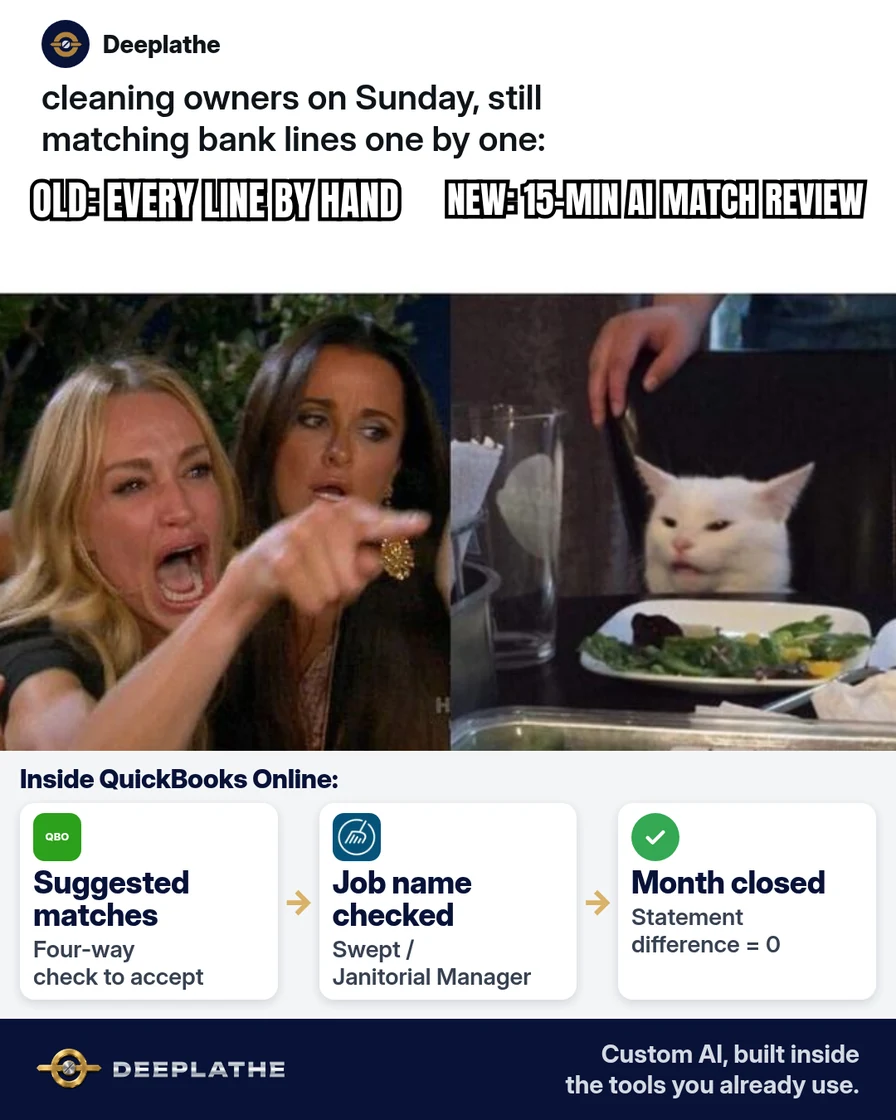
Sunday 2pm. The month is almost closed. QuickBooks Online still shows a stack of unmatched bank lines: supplies, fuel, a vendor you paid twice, three deposits that hit under the client's trade name. You click one by one. Your spouse asks if you're coming to dinner. This is QuickBooks AI bank reconciliation waiting to be turned on — or waiting for you to review its suggested matches instead of matching every row by hand.
The short answer
Turn on QuickBooks Online's AI-assisted bank reconciliation / suggested matches, review every suggestion before you accept it, clear exceptions daily for a week, then close the month. If your card feed lags the bank by a day, match what is present and leave the rest marked for tomorrow instead of forcing a close. QuickBooks AI bank reconciliation is a review job, not an autopilot you ignore.
Why bank rec eats weekends for cleaning companies
Cleaning firms run high transaction counts: supply runs, crew reimbursements, client deposits under different names, merchant fees. QuickBooks Online has been adding AI-assisted matching and reconciliation help (Autocomplete now surfaces "quickbooks ai bank reconciliation" strongly). Q4 makes it worse: owners want books clean before year-end reviews and tax packages. Skipping suggested matches — or accepting them blind — both cost money: hours, or mis-categorised expenses that hide margin.
Floor vote
How do you handle bank matches today?
One vote per device. Change it any time.
Loading votes…
Step 1: Confirm bank feeds and AI matching features in QuickBooks Online
In QuickBooks Online, open Bookkeeping → Transactions (or Banking, depending on your QBO layout). Confirm each operating account is connected and downloading. Open Intuit's help for your SKU and find the current name for suggested matches / AI-assisted reconciliation. Feature labels move; the rule does not: suggestions are proposals.
If your accountant uses QuickBooks Desktop only, ask them whether Online bank match is in scope before you change process.
Step 2: Run QuickBooks AI bank reconciliation as a review queue
For each suggested match:
- Open the suggestion.
- Check payee, amount, date, and category against the receipt or card feed.
- Accept only if all four agree.
- If anything differs, dismiss and match manually or add the missing expense.
Do not "Accept all". A wrong fuel category across fifty rows is worse than twenty minutes of review.
Daily 15-minute bank match checklist:
- Sort For review by oldest first.
- Accept suggestion only when payee + amount + date + category match.
- Anything with a client's trade name in the bank memo: confirm which job in Swept / Janitorial Manager before categorising.
- Duplicate amounts same day: open both — often a double pay.
- End at zero "older than 7 days" in For review.
Step 3: Clear exceptions before you hit Reconcile
When For review is current, start Reconcile for the account. Compare ending balance to the bank statement. If difference ≠ 0, do not force it. Find the exception (usually an accepted suggestion with the wrong date or a excluded fee). Fix, then finish reconcile and save the PDF statement to your month folder.
Step 4: Hand your bookkeeper a short exception log
Once a week, send three bullets: suggestions accepted, suggestions rejected and why, anything still open. That keeps your bookkeeper from redoing your Sunday work and trains better rules next month.
From Sunday pile to weekday queue
- 1FeedsAccounts downloading in QBO.
- 2ReviewFour-way match to accept.
- 3ReconcileStatement ending balance matches.
- 4LogWeekly note to the bookkeeper.
- Feeds on: Accounts downloading in QBO.
- Review queue: Accept suggestions only on four-way match.
- Reconcile: Statement ending balance must match.
- Log: Weekly exception note to the bookkeeper.
Example (illustrative): 40-employee commercial cleaner on QuickBooks Online + Swept
The owner turns on suggested matches, spends 15 minutes each weekday on For review, and reconciles on the 2nd business day. Month close moves off Sunday. One wrong "Office supplies" vs "Job supplies" category is caught in the checklist because the Swept job name was in the memo.
At a glance
- Problem: Weekend lost to manual bank matching.
- What was set up: AI suggested-match review queue + reconcile + weekly exception log.
- Tools it lives in: QuickBooks Online, bank feed, Swept or Janitorial Manager for job names.
- What the owner still does: Accept/reject; final reconcile; exception log.
- Payoff: not measured here — track hours on bank match for two weeks before/after.
Keep receipts in one place while you train the queue: a phone album, a shared Drive folder, or the card feed itself. When a suggestion looks right but you have no receipt, park it in For review with a note instead of guessing the category. Guessing is how job cost disappears into "Office supplies" for a quarter.
What "good enough" looks like after two weeks
Bank match should feel like a weekday chore, not a Sunday emergency. For review should not hold lines older than a week. Reconcile differences should be rare and explainable in one sentence. Your bookkeeper's weekly exception log should shrink. If suggestions are mostly wrong, your vendor list or rules need cleaning before you blame the AI. QuickBooks AI bank reconciliation pays off when the queue is current, not when you binge-match once a month.
Mistakes to avoid
- Accept all. AI suggestions mis-file job vs office spend.
- Reconciling with a non-zero difference. Fix the exception.
- Ignoring merchant fees. They are real expenses.
- Letting AI invent a vendor. Pick from your vendor list.
- Changing process mid-month without telling the bookkeeper.
Field check
Field check
Three questions. Honest answers. No score sent anywhere but this page.
01 / 03
What four fields must agree before you accept a suggestion?
Owners often ask whether they should wait for a perfect setup. Do not. Ship the smallest version that keeps a human in the loop: one checklist, one prompt, one calendar block. You can widen the workflow after a quiet week. Waiting for a vendor feature rename or a perfect SOP is how October becomes December with the same pile. The version in this article is enough to start today on the tools you already pay for.
If it still doesn't work
If suggested matches never appear, reconnect the bank feed and check Intuit's status page. If QBO AI features are not on your plan, use rules + manual match with the same four-way checklist. If the books are months behind, hire a catch-up bookkeeper for the backlog, then keep the daily 15-minute queue going forward.
Doing this inside the tools you already use
Deeplathe builds custom AI inside QuickBooks and the ops tools cleaners already run so exception queues and month-close checklists live where the work already is, with you approving categories that touch job cost. Less than a hire, more output. See Deeplathe.
FAQ
What is QuickBooks AI bank reconciliation?
Intuit's AI-assisted suggested matching and reconciliation help in QuickBooks Online that proposes bank-line matches for you to accept or reject.
Can I auto-accept every suggestion?
You can technically batch actions in some views — don't. Review payee, amount, date, category.
Does this replace my bookkeeper?
No. It reduces matching time so they (or you) spend time on exceptions and reports.
What if deposits use the client's trade name?
Confirm the job in Swept / Janitorial Manager before you categorise.
Is Desktop the same as Online?
Flows differ. Confirm features with your accountant before changing Desktop habits.
Keep these
- Suggestions are proposals.
- Four-way match to accept.
- Difference must be zero.
- Weekly exception log.
Sources
- QuickBooks Help: categorise and match online banking (search your QBO version for current AI match / reconcile articles)
- Intuit QuickBooks product updates
- Your bank's monthly statement PDF (source of ending balance)
Related reading
Keep these
The working rules
Turn on QuickBooks Online's AI-assisted bank reconciliation / suggested matches, review every suggestion before you accept it, clear exceptions daily for a week, then close the month.