Part of: Quotes and leads you never followed up
Follow-ups
Outlook draft with Copilot: write a clear staffing follow-up without starting from a blank email
For staffing agency owners who type “outlook draft with copilot” and want a clear follow-up without starting from a blank compose window.
For staffing agency owners who type “outlook draft with copilot” and want a clear follow-up without starting from a blank compose window.
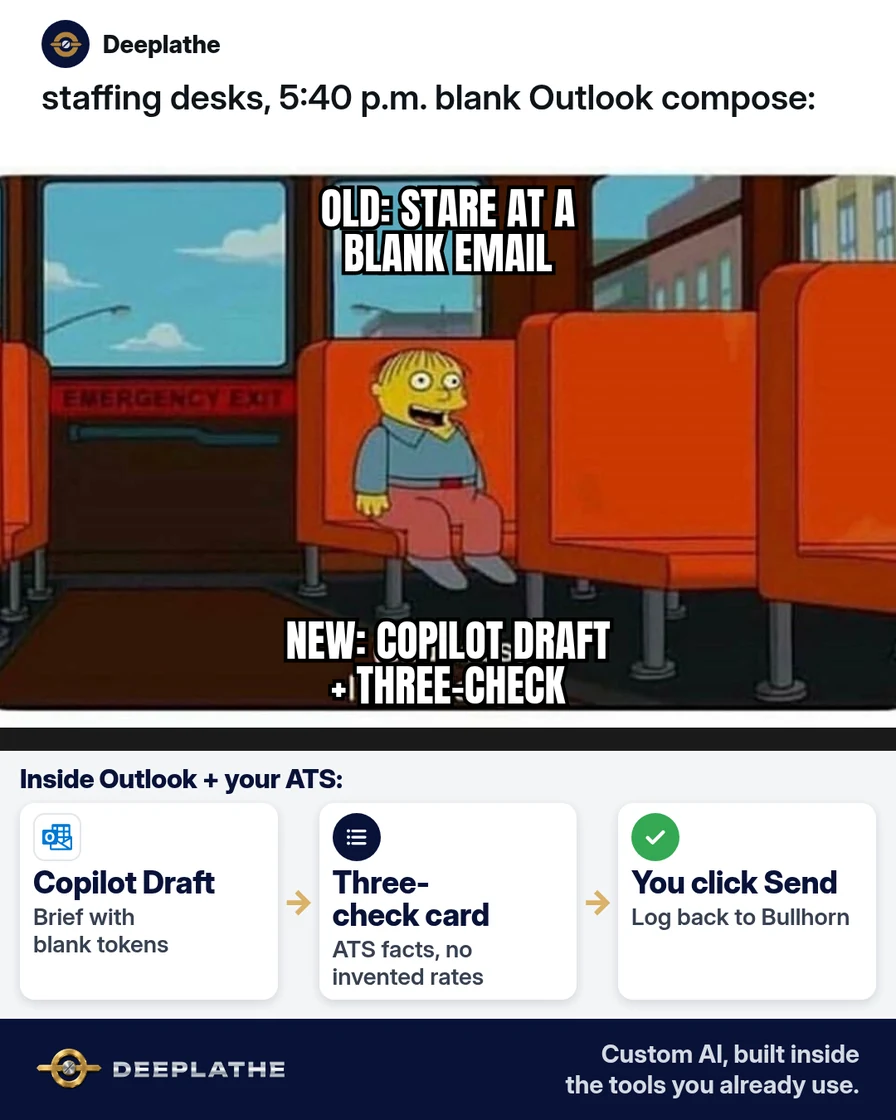
It is 5:40 p.m. A hiring manager asked for three more candidates by Friday. The thread is long. The recruiter opens Outlook, stares at a blank draft, and wonders where the Copilot button went — which is why “outlook draft with copilot” and “microsoft copilot for outlook” stay in Autocomplete, including “missing” and “greyed out.”
The short answer
In Microsoft 365 Outlook with Copilot enabled, open the thread or a new message and use Copilot’s draft / coaching controls to generate a first pass from a short brief — then edit, fact-check against Bullhorn or Avionte, and send yourself. If Draft is missing or greyed out, check license, channel (new vs classic Outlook), and admin policy before blaming the feature. Copilot does not replace your ATS.
Why outlook draft with copilot keeps getting searched
Staffing teams live in Outlook. On 14 Oct 2026, Autocomplete still shows “outlook draft with copilot,” “missing,” “not working,” and “microsoft copilot for outlook” as offices try in-inbox drafting instead of bouncing to a separate chat tab. That is a work problem AI fixes inside the inbox you already use — when the seat and admin settings actually allow it.
AI removes the blank-page tax. Copilot drafts the first follow-up inside Outlook in under a minute — faster than typing from scratch, cheaper than losing the thread context in another AI tab, more profitable when candidates and clients get same-day replies. Label any time-saved dollars as your estimate.
Floor vote
What blocks Copilot Draft in Outlook for your desk?
One vote per device. Change it any time.
Loading votes…
Step 1: Confirm Copilot is available on this mailbox
Before you chase UI ghosts:
Checklist:
[ ] Microsoft 365 account with Copilot license assigned (admin)
[ ] Outlook updated (new Outlook / supported desktop or web)
[ ] Copilot not disabled by tenant policy
[ ] You are drafting from the work mailbox, not a personal IMAP account
Microsoft’s Copilot in Outlook help (learn.microsoft.com) is the source for current button names — they change. If Draft is greyed out, the Autocomplete “missing / not working” cluster usually points to license or classic vs new Outlook, not a secret setting on the email itself.
Step 2: Paste a short brief, then ask Copilot to draft
Open the client or candidate thread (or New Email). Start Copilot Draft / “Help me write” (wording varies). Paste:
Write a follow-up email.
Audience: hiring manager [First name]
Goal: confirm we will send 3 screened candidates by Friday for [role title]
Tone: plain, staffing desk, no hype
Include: ask for interview windows next week
Do not invent rates, bill rates, or start dates — leave [RATE] and [START] blanks
Max 120 words. Subject + body.
Generate. Read every line. Replace blanks from Bullhorn, Avionte, or TempWorks — never from Copilot’s guess.
Step 3: Run a three-check before send
1) Facts: names, role title, dates match the ATS
2) Promises: no rate, guarantee, or start date you did not approve
3) Thread: reply is on the correct conversation, correct To/Cc
If Copilot summarized the thread, spot-check against the last human message. AI can miss a “hold all candidates” note buried mid-thread.
Step 4: Save the brief as a team snippet
Put the paste-ready brief in a shared OneNote or Teams note titled “Outlook Copilot — client follow-up.” Recruiters change the brackets only. That is your free value loop without buying another prompt tool.
Optional coaching: after drafting, ask Copilot to shorten to 90 words or make the ask clearer — still keep human send.
Brief → Draft → check
- 1LicenseAdmin + Outlook channel
- 2Short briefBlank tokens for rates
- 3ATS factsThree-check card
- 4HumanLog back to ATS
- When Draft is missing, check license and Outlook channel first: not the email body.
- When drafting, paste a brief with blank tokens: never invent rates.
- When the thread is long, verify the last human instruction: Copilot can miss a hold.
- When the team repeats the job, save the brief snippet: one source of truth.
Example (illustrative): a 20-person light-industrial staffing desk
At a glance
- Problem: Recruiters bounced to ChatGPT, lost thread context, and sent conflicting ETAs.
- What was set up: Copilot Draft brief snippet + three-check card; ATS remains source of rates.
- Tools it lives in: Outlook + Copilot, Bullhorn, Teams.
- What the owner still does: Approves any email that mentions bill rate or guarantee.
- Payoff: not measured here — track median reply time on hiring-manager threads for two weeks.
Extra practice: classic vs new Outlook note
Have each recruiter write one line in the shared Teams note: “I use classic Outlook / new Outlook / web only,” plus whether Copilot Draft appears. That single inventory cuts half of “greyed out” tickets. Run one live drill: reply to an internal test thread with the paste-ready brief, apply the three-check, and save the before/after word count. If Copilot rewrites a hold instruction, escalate to admin training — not another AI seat. Revisit Microsoft Learn quarterly because button names move.
Mistakes to avoid
- Sending the first Copilot draft untouched. Always edit.
- Letting Copilot invent bill rates. Blank tokens only.
- Using personal Copilot habits on a shared client mailbox without policy. Align with admin.
- Ignoring classic vs new Outlook. Feature surfaces differ — check Microsoft’s current docs.
- Replacing the ATS note with the email. Log the outcome back in Bullhorn/Avionte.
Field check
Field check
Three questions. Honest answers. No score sent anywhere but this page.
01 / 03
Draft missing usually means…
If it still doesn't work
If Copilot never appears: confirm license in Microsoft 365 admin, try Outlook on the web, and update the desktop client. If it appears but refuses the thread: start a new draft with the brief pasted, or shorten the thread selection per Microsoft’s guidance. If quality is poor, your brief is vague — add audience, goal, and blank tokens.
Doing this inside the tools you already use
If you want follow-ups, timesheet reminders, and candidate updates drafted inside Outlook and written back to Bullhorn the way your desk already works — without each recruiter inventing prompts — Deeplathe can build that custom AI around your existing systems. The owner stays in control of rates and promises. Start with one workflow (hiring-manager follow-ups) and keep send authority with a person.
FAQ
How do I draft an email with Copilot in Outlook?
Open Outlook with a Copilot-enabled Microsoft 365 account, start a new message or reply, open Copilot’s draft / help-me-write control, paste a short brief, then edit and send. Exact button names vary — see Microsoft’s Copilot in Outlook documentation.
Why is Outlook draft with Copilot missing or greyed out?
Usually license, admin policy, or classic vs new Outlook channel — not a broken email. Confirm assignment and update the client; check tenant Copilot policies.
Does Copilot in Outlook use my whole mailbox?
Copilot can use context from the message and related content per Microsoft’s product behaviour and your org’s settings. Do not paste secrets into drafts you would not put in email. Follow your company’s data rules.
Is Copilot better than ChatGPT for staffing emails?
For staying on the Outlook thread, Copilot wins on convenience. For long prompt kits and Projects, ChatGPT may still be useful. Many desks use Copilot for the first pass in-inbox.
How much does Copilot cost?
Copilot licensing is separate from a basic Microsoft 365 seat. Check your Microsoft admin center and Microsoft’s current Copilot pricing pages — do not invent a number from a social post.
If a client contract forbids AI-assisted drafting, keep Copilot off that mailbox and use human templates only. Put the restriction in the ATS account note so nobody “helps” with Copilot by accident.
Keep these
- Confirm license before hunting buttons.
- Paste a brief with blank tokens.
- Three-check against the ATS.
- You still click Send.
Sources
- Copilot in Outlook (Microsoft Learn — search current article)
- Microsoft 365 Copilot documentation hub
Related reading
Part of: Follow-ups that actually get a reply
Keep these
The working rules
In Microsoft 365 Outlook with Copilot enabled, open the thread or a new message and use Copilot’s draft / coaching controls to generate a first pass from a short brief — then edit, fact-check against Bullhorn or Avionte, and send yourself.