Part of: The process that only lives in your head
SOPs
Turn off ChatGPT memory for business: when to keep it, when Temporary Chat is safer
For insurance agency owners who type “turn off chatgpt memory” and need a clear on/off and Temporary Chat checklist so client details do not ride into the next chat.
For insurance agency owners who type “turn off chatgpt memory” and need a clear on/off and Temporary Chat checklist so client details do not ride into the next chat.
A producer finishes a renewal draft in ChatGPT, then opens a new chat to write a personal errand note. Mid-sentence, ChatGPT references the insured’s street and policy type from the earlier thread. That is the moment people search “turn off chatgpt memory” and “what is chatgpt memory.”
The short answer
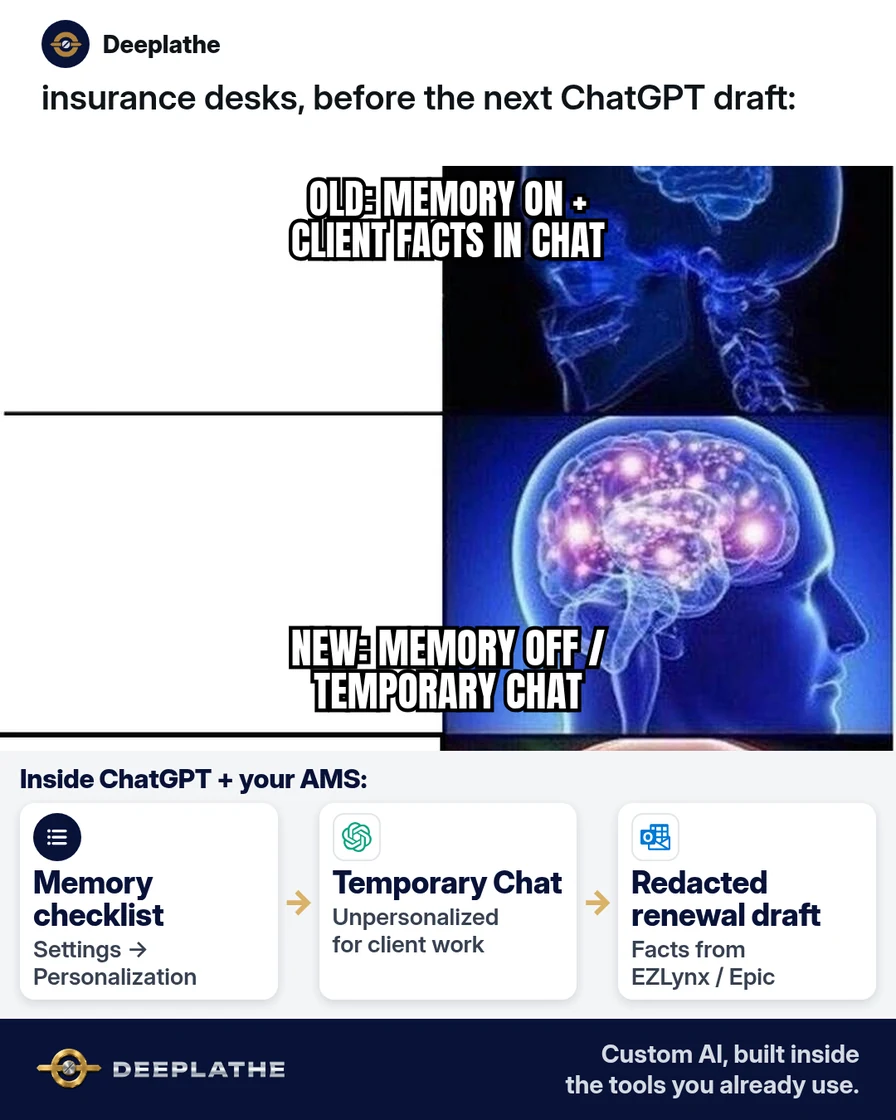
Use Settings → Personalization → Memory to turn Memory off (or manage “Reference saved memories” / “Reference chat history” if your account shows those controls), and use Temporary Chat for one-off client drafts when you want no new memories. Turning Memory off does not delete past chats. Delete saved memories separately if you need them gone. You still never paste SSNs, full ACORDs, or unredacted policyholder files into any chat.
Why turn off chatgpt memory keeps getting searched
Memory is useful for personal preferences and terrible when it quietly retains client context. Autocomplete on 14 Oct 2026 still clusters around “turn off chatgpt memory,” “should I,” and “what is chatgpt memory” as agencies draft renewals with AI. OpenAI Help documents Memory under Settings → Personalization → Memory, plus Temporary Chat for conversations that stay out of history while temporary.
AI makes drafting faster only when the settings match the job. Correct Memory / Temporary Chat settings let producers draft renewal wording without carrying policyholder details into the next chat — cheaper than a privacy incident review, and more profitable than re-typing every email from scratch after a scare.
Floor vote
Where does client detail leak most often in your office AI use?
One vote per device. Change it any time.
Loading votes…
Step 1: Open Memory settings and write what you see
In ChatGPT: profile → Settings → Personalization → Memory. Controls vary by plan, region, platform, and workspace (OpenAI Help). You may see Enable memory, Reference saved memories, Reference chat history, Memory summary, Manage, or Saved memories.
Paste this office checklist into a shared Docs file and fill it for each seat:
Seat owner: [name]
Date checked: [today]
Memory / Enable memory: ON / OFF
Reference saved memories (if shown): ON / OFF
Reference chat history (if shown): ON / OFF
Rule for client work: Temporary Chat Unpersonalized / Memory OFF / Business workspace only
Business and Enterprise admins may control what producers can enable — ask before assuming every seat matches yours.
Step 2: Decide when Memory stays on vs off
Use this can / never card:
CAN leave Memory ON: personal tone prefs, your own scheduling habits, non-client writing.
TURN Memory OFF (or use Temporary Chat) for: policyholder names, claim facts, ACORD data, driver lists, premium figures tied to a person, anything you would not put on a shared whiteboard.
NEVER paste into any chat (Memory on or off): SSN, full DOB + address combo, raw ID scans, passwords, full unredacted ACORD.
OpenAI Help: Temporary Chat can be started Unpersonalized so it does not use memory, custom instructions, or plugins for that conversation, and does not create or update memories while it stays temporary.
Step 3: Turn Memory off or delete memories when needed
To disable: Settings → Personalization → Memory → turn Enable memory (or the equivalent) OFF. Turning off does not delete past chats; if you turn Memory on later, ChatGPT may create new remembered information from remaining history (OpenAI Help).
To delete remembered info shown in the summary: use Manage / Memory summary options. OpenAI Help describes “Delete and turn off memory” from the more-options menu on the summary — that deletes the remembered information shown and turns Memory off; it does not delete past chats.
For a single sensitive draft without changing account defaults: start a Temporary Chat and choose Unpersonalized before the first message (OpenAI Temporary Chat help).
Step 4: Draft renewals from redacted facts in EZLynx, HawkSoft, or Epic
Keep source of truth in EZLynx, HawkSoft, or Applied Epic. In ChatGPT (Temporary Chat or Memory-off seat), paste only redacted fields:
Draft a renewal reminder email.
Insured first name: [Jordan]
Policy type: [HO-3]
Renewal month: [November]
Agency phone: [phone]
Rules: no invented premiums; leave [PREMIUM] blank; max 110 words; subject + body.
Do not ask me to paste account numbers.
Copy the draft into Outlook or Gmail. Send yourself. If anything looks like it remembered a prior client, stop, check Memory settings, and delete that memory.
Lock Memory to the job
- 1Memory panelSettings → Personalization
- 2Off or TemporaryClient work seats
- 3Old memoriesSummary → manage
- 4Before pasteAMS remains source
- When checking a seat, screenshot the Memory panel: controls differ by plan and admin.
- When drafting client work, prefer Temporary Chat Unpersonalized: no new memories while temporary.
- When cleaning up, delete memories and turn Memory off if required: past chats stay until you delete them separately.
- When in doubt, redact first: Memory off is not a license to paste PII.
Example (illustrative): a 10-person P&C agency
At a glance
- Problem: Producers used personal ChatGPT with Memory on; a later personal chat echoed an insured’s street.
- What was set up: Memory OFF on client-work seats, Temporary Chat rule card, redaction prompt in the shared drive.
- Tools it lives in: ChatGPT Business where available, EZLynx for facts, Outlook for send.
- What the owner still does: Spot-checks any email that mentions coverage or premium.
- Payoff: not measured here — track “unsafe paste” incidents for 30 days before/after.
Extra practice: a two-seat dry run
Pick two mailboxes that touch renewals. On seat A, turn Memory off and draft a redacted renewal with Temporary Chat Unpersonalized. On seat B, leave Memory on deliberately with fake data only, then open a new personal chat and see whether details carry. Screenshot both Memory panels into the shared drive. That dry run teaches faster than another policy PDF. Add a calendar reminder every 90 days to re-check controls after OpenAI UI changes. If Business workspace is available, move client drafting there and keep personal Free chats for non-client writing only.
Mistakes to avoid
- Assuming Memory off deletes chat history. It does not (OpenAI Help).
- Using Temporary Chat but choosing Personalized. Personalized can still use existing memories and custom instructions for that temporary thread.
- Pasting a full ACORD “just this once.” Memory settings do not make that safe.
- Letting AI invent premiums or binding dates. Those stay human-checked from the AMS.
- Ignoring workspace admin policy on Business/Enterprise. Your toggle may be limited.
Field check
Field check
Three questions. Honest answers. No score sent anywhere but this page.
01 / 03
Memory controls live under…
If it still doesn't work
If you cannot find Memory controls, your plan, region, or admin may hide them — check OpenAI Help and ask the workspace admin. If Temporary Chat is missing, update the app or use web ChatGPT. If a memory keeps returning, delete it in Manage memories and delete the original chat that created it when OpenAI’s guidance says both are needed for a full remove.
Doing this inside the tools you already use
If you want Memory rules, redaction, and renewal drafts enforced inside the AMS and inbox your team already runs — without each producer inventing their own ChatGPT habits — Deeplathe can build that custom AI around your existing systems. The owner stays in control of what is remembered and what is sent. Start with one workflow (renewal reminders or claim-status wording) and keep send authority with a person.
FAQ
How do I turn off ChatGPT memory?
Open Settings → Personalization → Memory and turn Enable memory (or the equivalent control) off. Exact labels vary (OpenAI Help). Turning Memory off does not delete past chats.
What is ChatGPT memory?
OpenAI describes Memory as features that let ChatGPT remember details to personalize future chats — including saved memories you asked it to keep and, when enabled, useful information from chat history. Controls and availability vary.
Does Temporary Chat create memories?
While a chat remains temporary, it does not create or update memories (OpenAI Temporary Chat help). Choose Unpersonalized before the first message if you do not want existing personalization used.
Is turning Memory off enough for client data?
No. Still redact PII and prefer a Business workspace for client work. Memory off reduces carry-over; it does not make raw policyholder files safe to paste.
Will deleting a chat delete saved memories?
Not necessarily. OpenAI Help notes that deleting a chat does not remove saved memory from that conversation; manage memories in Settings as well when you need a full remove.
Keep these
- Check Memory settings on every seat that touches client work.
- Temporary Chat Unpersonalized for one-off sensitive drafts.
- Redact before paste — always.
- You still send from Outlook or Gmail.
Sources
- Memory in ChatGPT (OpenAI Help)
- Temporary chat in ChatGPT (OpenAI Help)
- How does “Reference saved memories” work? (OpenAI Help)
Related reading
Keep these
The working rules
Use Settings → Personalization → Memory to turn Memory off (or manage “Reference saved memories” / “Reference chat history” if your account shows those controls), and use Temporary Chat for one-off client drafts when you want no new memories.