Part of: The process that only lives in your head
SOPs
Caregiver schedule template for a home care agency (free, in Google Sheets)
For home care agencies: a three-tab Sheets model with data validation, COUNTIFS overlap detection, weekly hour caps per caregiver and a written-confirmation status flow.
It's Sunday night, and a caregiver texts that she can't make Mrs. R's 7 a.m. visit. You open three places to find who's free: a whiteboard photo, a group chat and last week's spreadsheet. By the time you find a backup, you're not sure anyone told the client's daughter. A caregiver schedule template the whole office runs the same way fixes most of this.
The short answer
Model the caregiver schedule as a visit log, not a weekly grid: one row per visit in a Google Sheet, with Caregivers and Clients as lookup tabs. Every column a formula reads comes from a dropdown, and a visit only counts as confirmed when the caregiver replies. Three custom-formula conditional formatting rules then flag open visits, overlapping visits and changes nobody was told about.
Why caregiver schedules fall apart
A weekly grid (caregivers down the side, days across the top, client names typed into cells) is easy to read but impossible to query. You can't count hours, detect overlaps or filter one client's visits without reading every cell.
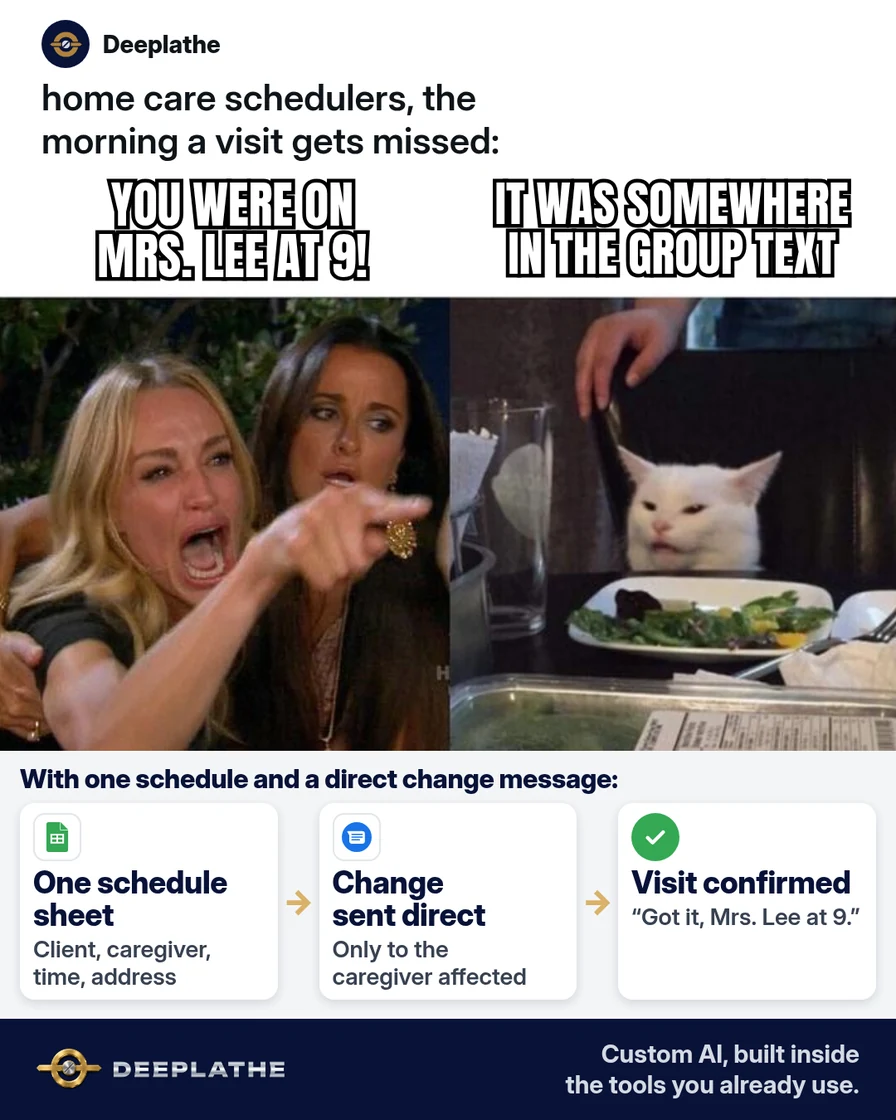
The second failure is copies. The owner's memory, the scheduler's sheet, caregivers' screenshots and the group chat all hold a version, and every change has to be applied four times. One gets missed.
A visit log fixes both. Each row is one fact: who, where, when and what state it's in. Formulas can count and compare rows, and the "Notified" column gives you a record of who was told about each change.
Floor vote
Where does your caregiver schedule live today?
One vote per device. Change it any time.
Loading votes…
Step 1: Set up the caregiver schedule template tabs
Create a Google Sheet with three tabs: Caregivers, Clients, Schedule.
Caregivers tab, columns A to E:
- A, Name: first name plus last initial. This is the key every formula matches on.
- B, Phone: the number they read texts on.
- C, Can work: availability in plain words.
- D, Max hours: a number, used by the overtime rule.
- E, Hours this week: a formula, added in Step 3.
Clients tab: Client code (like C-014), Area, Usual visits, Family contact. Using a code rather than a name means the Schedule tab and anything you paste into an AI tool carries no client identity on its own. Keep addresses, care plans and diagnoses in your client file.
Schedule tab, row 1, columns A to K:
Week of | Date | Day | Client code | Start | End | Hours | Caregiver | Backup | Status | Notified
Formulas for row 2, copied down:
C2: =TEXT(B2,"ddd")
G2: =IF(OR(E2="",F2=""),"",(F2-E2)*24)
Sheets stores times as fractions of a day, so (End minus Start) times 24 gives hours. An overnight visit that ends after midnight will come out negative; split it into two rows, one per date, so daily views and overlap checks stay correct. Freeze row 1 with View, Freeze, 1 row.
Step 2: Add dropdowns so names are spelled one way
Every formula below matches text exactly enough that "Maria G" and "Maria G " (trailing space) can count as different people. Data validation removes that risk.
Select H2:H500. Click Data, Data validation, Add rule. Under "Criteria", pick Dropdown (from a range) and choose Caregivers!A2:A100. Repeat for I2:I500 (Backup) and for D2:D500 with the Client code range.
For J2:J500, choose Dropdown and add the items:
Scheduled
Confirmed
Changed
Open
Cancelled
Leave the default behavior on, which rejects input that isn't on the list. Under Advanced options you can switch to "Show a warning", but for these columns rejection is the point. For K2:K500, use Insert, Checkbox; an unticked box reads as FALSE in formulas.
Because the dropdown points at a range, adding a caregiver to the Caregivers tab updates every dropdown with no rule edits.
Step 3: Make the caregiver schedule flag its own problems
Select A2:K500 on Schedule. Open Format, Conditional formatting, choose Custom formula is, and add the rules below. The $ before each column letter locks the column so the whole row colors, while the row number stays relative.
Open visits (red):
=$J2="Open"
Overlapping visits for the same caregiver on the same date (orange). Two visits overlap when one starts before the other ends and ends after the other starts. The row always matches itself, so more than one match means a clash:
=AND($H2<>"",COUNTIFS($H$2:$H$500,$H2,$B$2:$B$500,$B2,$E$2:$E$500,"<"&$F2,$F$2:$F$500,">"&$E2)>1)
Changes not yet sent (yellow):
=AND($J2="Changed",$K2=FALSE)
Rules run in list order and the first true rule sets the format, so drag the red rule to the top.
Weekly hours live on the Caregivers tab, because a conditional formatting formula can only reference its own sheet directly (other sheets need INDIRECT). Put the Monday you're checking in G1, then in E2:
=SUMIFS(Schedule!G:G,Schedule!H:H,A2,Schedule!A:A,$G$1)
Select E2:E100 and add the custom formula rule =$E2>$D2 in red.
Step 4: Fill the schedule the same way every week
The weekly caregiver scheduling rhythm
- WedCopyCopy this week's rows to next week's dates
- ThuFixApply time off, new clients and hospital stays
- Thu pmFillRed rows first, then clear every orange overlap
- Fri noonSendText each caregiver her week, tick Notified on reply
- Daily 3pmCheck tomorrowFilter to tomorrow and look for any color
- Wednesday, copy: filter Week of to this Monday, copy the rows to the bottom, then add 7 to Week of and Date.
- Thursday, fix: apply time off, new clients and hospital stays; set uncovered rows to Open.
- Thursday afternoon, fill: clear red first, then every orange overlap.
- Friday by noon, send: one message per caregiver; tick Notified on reply.
- Every day at 3 p.m., check tomorrow: filter Date to tomorrow and scan for color.
For a second pass, paste only Date, Client code, Start, End, Caregiver and Status into ChatGPT, Gemini or Claude:
Here is next week's caregiver schedule for a home care agency.
Columns: Date, Client code, Start, End, Caregiver, Status.
1) List any visit with Status "Open".
2) List any caregiver with two visits that overlap on the same date.
3) List any caregiver with less than [TRAVEL MINUTES] minutes
   between visits.
Do not suggest who to assign. Just list the problems.
[PASTE ROWS]
Treat the output as a cross-check of the color rules, not a replacement. Language models can misread times, so verify any item against the sheet. The assignment itself stays with you.
Step 5: Send the shift-change message to caregivers
The state machine is simple: Changed (yellow) → message sent → Notified ticked → caregiver replies → Confirmed.
Hi [CAREGIVER FIRST NAME], a schedule change for you:
[DAY] [DATE], client [CLIENT CODE] in [AREA]
New time: [START]-[END] (was [OLD TIME])
Please reply CONFIRMED so I know you have it.
If you can't make it, reply NO by [DEADLINE] and I'll find cover.
- [YOUR NAME], [AGENCY NAME]
Weekly version:
Hi [CAREGIVER FIRST NAME], here's your week of [MONDAY DATE]:
[DAY] [START]-[END] client [CLIENT CODE], [AREA]
[DAY] [START]-[END] client [CLIENT CODE], [AREA]
Total: [HOURS] hours.
Reply CONFIRMED, or tell me by [DEADLINE] what doesn't work.
The fixed reply word makes replies easy to scan and, later, easy to match automatically. Send from one office number so caregivers know which texts are official. Notify the family contact only after the caregiver confirms, so you never announce a change that falls through.
Example (illustrative): an agency with 25 caregivers
This is a walkthrough, not a client story. A family-owned agency has an owner, one scheduler, about 25 caregivers and 40 clients, so the Schedule tab gains roughly a few hundred rows a week.
The scheduler copies rows forward on Wednesday and filters by Week of to work one week at a time. Older weeks stay in the log, so she can answer "who saw C-014 last month?" with a filter.
At a glance
- Problem: schedule changes spread across a whiteboard, a group chat and a sheet.
- What was set up: a visit-log Google Sheet with dropdowns, three color rules and an hours check.
- Tools it lives in: Google Sheets and the office texting number.
- Owner still does: assigns cover for hard visits and talks to families.
- Payoff: not measured here. Count missed or late visits for a month before and after.
Mistakes to avoid
- Hard-coding ranges too short. If rows pass 500, extend every rule and dropdown range.
- Typing names over a dropdown. Rejected input is the guardrail; don't switch it to a warning.
- Counting a sent text as confirmed. Confirmed needs a reply.
- Letting AI choose cover. It can list conflicts; it can't judge client fit.
- Clinical details in the schedule. Codes, areas and times only.
Field check
Field check
Three questions. Honest answers. No score sent anywhere but this page.
01 / 03
Is a shift only marked confirmed after the caregiver replies?
If it still doesn't work
If the overlap rule never fires, check that Start and End are real times, not text. Select the column and use Format, Number, Time; text values that won't convert need retyping.
If you outgrow the sheet, look at home care scheduling software. AxisCare lists drag-and-drop reassignment, open shifts sent to selected caregivers by text, email or app, and overtime alerts. AlayaCare lists vacant-visit recommendations and real-time schedule updates to caregiver mobile apps.
Doing this inside the tools you already use
Deeplathe is a team of developers who build custom AI inside the tools a business already uses. For this job, a custom build could watch your Google Sheet for rows marked Changed. It drafts the shift-change text with the right day, time and client code, and holds it for your approval. When the caregiver replies CONFIRMED, it ticks Notified and updates the status.
You still choose who covers each visit and approve each message. See how a custom build works.
FAQ
What should a caregiver schedule template include?
One row per visit: week, date, weekday, client code, start, end, hours, caregiver, backup, status and a Notified checkbox. Keep caregivers and clients on their own tabs so dropdowns and hour totals can reference them. Leave clinical details in the client file.
How do you schedule caregivers for multiple clients?
Log each visit as its own row and sort by caregiver, then date, then start time. A COUNTIFS-based conditional formatting rule flags overlaps on the same date. Leave travel time between visits in different areas, and fill open visits before fine-tuning the rest.
How do you tell caregivers about schedule changes?
Text the day, date, client code, area and new time from one office number, and ask for a fixed reply word like CONFIRMED. Tick Notified when you send, mark the visit Confirmed when they reply, and only then update the family contact.
Is there a free caregiver schedule app?
Google Sheets is free, works on phones, and handles dropdowns, color rules and hour totals. Home care platforms like AxisCare and AlayaCare add caregiver apps, open-shift alerts and visit verification. They mostly quote pricing through demos, so ask each vendor directly.
Keep these
- One row per visit, one log for the office.
- Dropdowns on every column a formula reads.
- Confirmed means the caregiver replied.
- AI lists conflicts; you assign cover.
Sources
- Google Docs Editors Help: Create an in-cell dropdown list
- Google Docs Editors Help: Use conditional formatting rules in Google Sheets
- AxisCare: Home care scheduling software features
- AlayaCare: Scheduling software
Related reading
Keep these
The working rules
Row-per-visit schema with validated enums, conditional-format rules for open, overlapping and unnotified visits, and SUMIFS hour totals against caps.