Part of: The process that only lives in your head
SOPs
How to create Gemini Gems for business: one custom Gem for the jobs you repeat
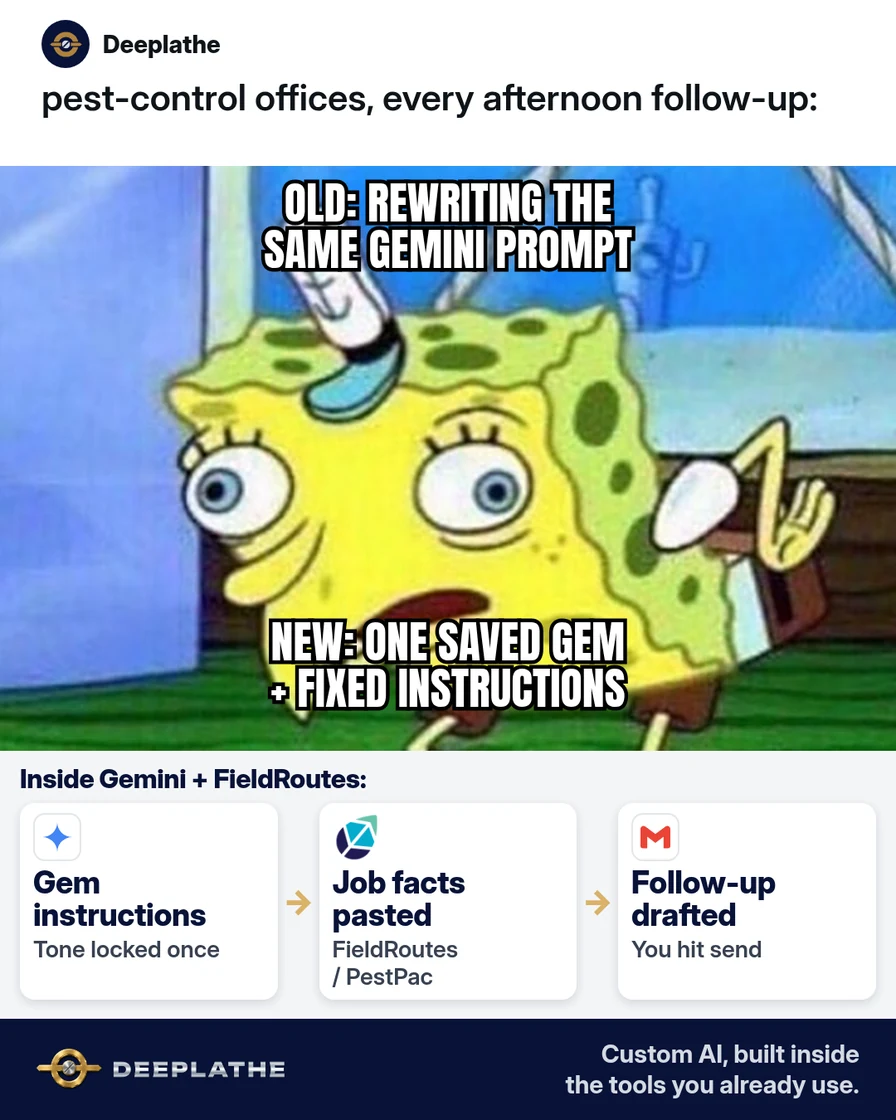
For family pest-control owners who rewrite the same Gemini prompt every afternoon: create one custom Gem with fixed instructions and a paste-ready follow-up style so office staff stay on-brand without starting from zero.
For family pest-control owners who rewrite the same Gemini prompt every afternoon: create one custom Gem with fixed instructions and a paste-ready follow-up style so office staff stay on-brand without starting from zero.
It is 3:15 p.m. Three post-service follow-ups are due. Someone opens Gemini, types a vague “write a nice follow-up,” and the tone changes every time. Customers notice. A Gem stores the instructions once. You open it, paste the job facts, and get the same structure back.
The short answer
To create Gems in Gemini for business, go to gemini.google.com → sidebar → Gems → New Gem, paste firm instructions (role, task, format, never-do list), preview, then Save — and reuse that Gem for every repeat job. Google’s help docs document those steps. Note: Google has announced Gems will transition to “skills” on a phased timeline (personal accounts starting November 2026; Workspace later) with automatic migration — the habit of saving instructions still matters.
Why teams keep rewriting the same Gemini prompt
Without a saved Gem, every CSR invents tone, length, and what to ask next. You get uneven brand voice and missed steps (review ask, rebook window, safety note). Buying another prompt-library SaaS is optional. A Gem is the free (with your Gemini access) place to lock the system prompt once.
A Gem is not a separate product you buy. It is a saved instruction set inside Gemini Apps. Google’s help page “Use Gems in Gemini Apps” is the source for the create path: sidebar, Gems, New Gem, name, instructions, optional Knowledge files, Save. Premade Gems exist too, but a pest-control follow-up needs your never-do list — prices, chemical claims, and fake “pest gone forever” lines stay out.
Time math you can check in your own office (label as your estimate, not a lab study): if rewriting a prompt takes three minutes and you send ten follow-ups a day, that is thirty minutes of prompt thrash. Opening a saved Gem and pasting job facts is usually under a minute. The money saved is staff time and fewer awkward “that didn’t sound like us” rewrites — not a magic revenue number.
Floor vote
How does your office write Gemini follow-ups today?
One vote per device. Change it any time.
Loading votes…
Step 1: Open Gemini and start a New Gem
On a computer:
- Go to gemini.google.com.
- Click Open Sidebar.
- Click Gems (first time, you may need Settings and help → Gems).
- Click New Gem.
- Enter a clear name, e.g.
Pest follow-up — post service.
If your team uses Gemini inside Google Workspace side panels, a Gem you create on the web app also shows up in the mobile app and Workspace side panel per Google’s help notes. Create it once on the computer, then let CSRs open the same Gem on the phone between tickets.
(Optional later: under Knowledge, Add files for a short brand sheet or service menu Doc — never customer SSNs or payment data.)
Step 2: Paste ready-made Gem instructions (copy this)
Paste this into the Gem Instructions box, then edit bracketed bits for your company:
ROLE
You are the office writing assistant for [Company Name], a family pest control company.
Tone: clear, respectful, short sentences, no slang, no scare tactics.

TASK
When I paste job facts, draft ONE customer follow-up email (and a matching SMS under 160 characters if I ask).

INPUT I WILL PASTE
- Customer first name (or "Customer")
- Service type (e.g. general pest, termite inspection)
- Service date
- Tech first name
- Any follow-up window (e.g. "recheck in 14 days")
- Optional: ask for Google review? yes/no

OUTPUT FORMAT
1) Subject line
2) Email body (max 120 words)
3) SMS (only if requested)
4) "Owner check" — one line listing anything I still must verify in PestPac / FieldRoutes / GorillaDesk before send

RULES
- Do not invent prices, guarantees, chemical names, or licenses.
- Do not claim a pest is "gone forever."
- Do not include payment links unless I paste one.
- If a required input is missing, ask for it instead of guessing.
- Keep brand words: [friendly / thorough / local family-owned — edit].
Optional: click Use Gemini to re-write instructions to expand your draft, then edit anything that sounds off. Preview on the right with a fake job before you rely on it.
Step 3: Preview with a fake job, then Save
In the preview box, paste:
Customer: Alex
Service: general pest
Date: Oct 12
Tech: Jordan
Recheck: 14 days
Ask review: yes
Draft email + SMS.
Check tone and the “Owner check” line. Fix instructions if needed. Click Save. Using preview alone does not save — Google’s help calls that out.
Step 4: Use the Gem from the sidebar for real jobs
- Sidebar → Gems → open
Pest follow-up — post service. - Paste real job facts from PestPac, FieldRoutes, or GorillaDesk (no card numbers, no gate codes in the prompt if your policy forbids it).
- Copy the draft into Gmail or your Workspace mail.
- Re-check schedule and notes in your field software, then send.
- Log the follow-up in the CRM/job record as you already do.
Keep a shared Doc titled Gem instructions backup with the same text you pasted. Google has announced that Gems will move to skills on a phased schedule (personal accounts starting November 2026; Workspace business later) and that Gems migrate automatically. Your backup Doc means you are not stuck if the UI label changes next quarter.
Create a business Gem once
- OpenNew GemSidebar → Gems → New Gem
- InstructPaste the blockRole, task, format, never-do
- PreviewFake job firstThen click Save
- ReuseFacts onlyVerify in field software before send
- Create: Sidebar → Gems → New Gem → name it.
- Instruct: Paste role / task / format / never-do block.
- Preview: Fake job first; then Save.
- Reuse: Open the same Gem; paste job facts only.
Example (illustrative): a 12-truck family pest company
Office staff used to rewrite Gemini prompts between routes. The owner saved one Gem with the instructions above, trained CSRs in ten minutes, and required PestPac confirmation before send.
At a glance
- Problem: Rewriting the same Gemini prompt; uneven follow-up tone.
- What was set up: One custom Gem + preview habit + field-software verify step.
- Tools it lives in: Google Gemini (Gems), Gmail / Google Workspace, PestPac or FieldRoutes or GorillaDesk.
- What the owner still does: Approves wording on complaints or guarantee language.
- Payoff: not measured here — track minutes per follow-up and “rewrote prompt from scratch” count for two weeks.
Mistakes to avoid
- Vague instructions (“be helpful”). Gems need role, format, and never-do rules.
- Putting customer payment data in the Gem or chat. Keep cards and gate codes in your field system.
- Letting the Gem invent prices or chemical claims. Ban that in instructions.
- Skipping Save after preview. Preview does not persist the Gem.
- One mega-Gem for every job. Separate Gems for follow-up, review request, and estimate recap stay clearer.
- Sharing a Gem that still has a test customer name in Knowledge. Strip sample files before you share with the team.
Field check
Field check
Three questions. Honest answers. No score sent anywhere but this page.
01 / 03
First place to create a Gem?
If it still doesn't work
If Gems are missing, confirm you are on gemini.google.com signed into the right Google account and that your Workspace admin allows Gemini Apps. If quality drifts, shorten instructions and add one good example input/output pair. If Google has moved your account to skills, recreate the same instructions there — Google states existing Gems migrate automatically on their published timeline; still keep a copy of your instruction text in a Doc.
Doing this inside the tools you already use
When follow-ups should pull job fields from PestPac / FieldRoutes and drop a draft into Gmail without staff re-prompting, Deeplathe builds custom AI inside the tools you already use so the Gem-style instructions live in your workflow and you still approve the send. See /solutions.
FAQ
How do I create Gems in Gemini?
gemini.google.com → Open Sidebar → Gems → New Gem → name + instructions → optional Knowledge files → Save. Preview on the right, then Save explicitly.
Are Gemini Gems free?
Gems are a feature inside Gemini Apps for eligible accounts. Availability can differ for personal vs work accounts; check your sidebar. Do not invent plan prices — confirm on Google’s Gemini product pages for your account type.
Can I share a Gem with my team?
Google documents sharing for Gems and Gem conversations. Prefer firm-owned accounts and your admin’s rules before sharing customer-facing workflows.
What are good Gemini Gems examples for a pest company?
Post-service follow-up, Google review request (no fake urgency), estimate recap, and “what to bring on first visit” checklists — each as its own Gem with a never-do list.
Gems vs typing a long prompt each time?
A Gem stores instructions once. You only paste job facts. Faster, more consistent, cheaper than re-prompting or a separate prompt SaaS.
Keep these
- One Gem per repeat job; clear name.
- Instructions = role + task + format + never-do.
- Preview fake data → Save → reuse.
- Verify in PestPac/FieldRoutes/GorillaDesk before send.
Sources
- Use Gems in Gemini Apps
- Tips for creating custom Gems
- Automate repetitive tasks with Skills (Gems transition note)
Related reading
Keep these
The working rules
To create Gems in Gemini for business, go to gemini.google.com → sidebar → Gems → New Gem, paste firm instructions (role, task, format, never-do list), preview, then Save — and reuse that Gem for every repeat job.