Part of: The process that only lives in your head
SOPs
How to create Gemini Gems for business: one custom Gem for the jobs you repeat
For pest-control ops managers who need a reproducible “how to create Gems in Gemini” path: Gem create UI, instruction schema, preview/save contract, and CRM verify-before-send.
For pest-control ops managers who need a reproducible “how to create Gems in Gemini” path: Gem create UI, instruction schema, preview/save contract, and CRM verify-before-send.
Repeat prompts without a saved Gem produce tone drift. Google’s Gem manager is the control surface: name, instructions, optional Knowledge, preview, Save. Phased migration to skills is announced (personal from Nov 2026; Workspace later) with automatic migration — keep instruction text backed up in Docs.
The short answer
Create at gemini.google.com → Sidebar → Gems → New Gem; paste a four-part instruction block (role, task, input contract, output + never-do); preview with synthetic job data; Save; reopen the Gem and pass only job facts from PestPac/FieldRoutes/GorillaDesk. Do not treat preview as persistence.
Why teams keep rewriting the same Gemini prompt
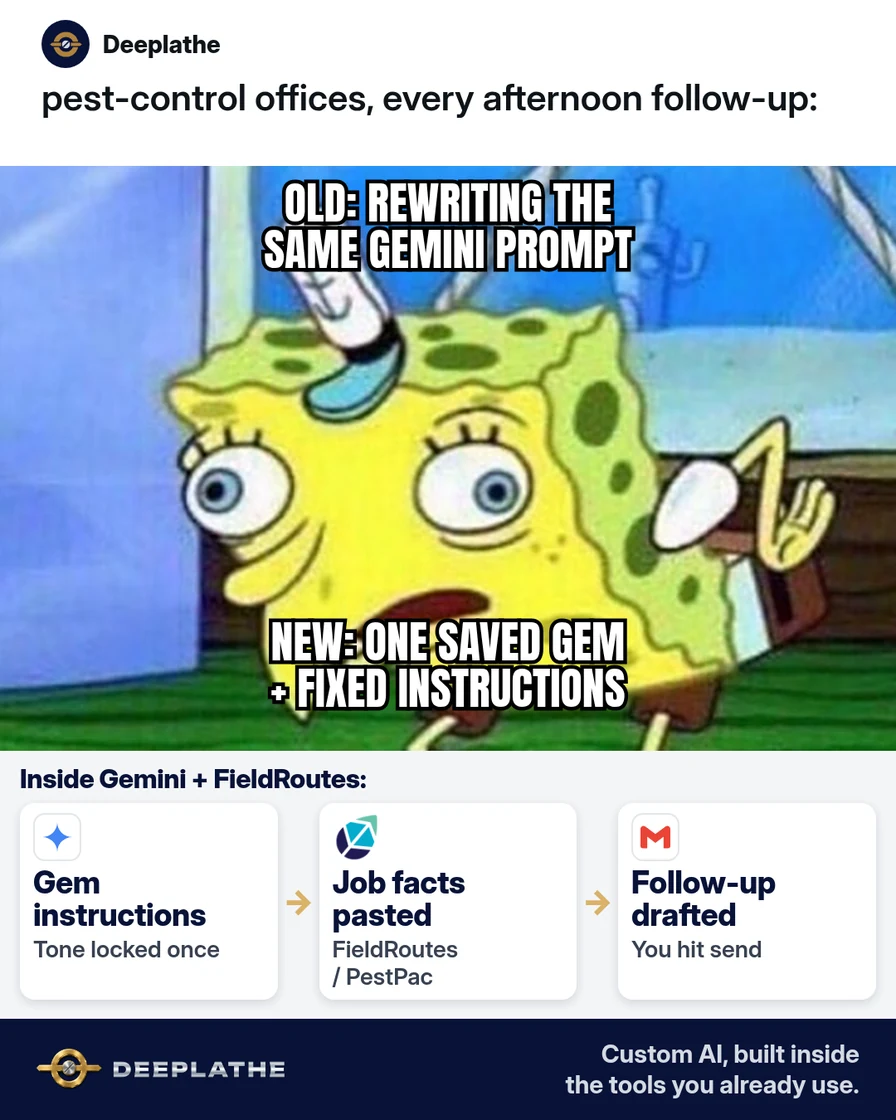
Each blank chat resets constraints. Staff omit review asks, invent guarantees, or change length. A Gem is a durable system prompt with optional Knowledge files — cheaper than re-prompting or buying a prompt vault when Gemini access already exists.
Floor vote
How does your office write Gemini follow-ups today?
One vote per device. Change it any time.
Loading votes…
Step 1: Open Gemini and start a New Gem
Per Google help: gemini.google.com → Open Sidebar → Gems → New Gem → name. Optional Knowledge via Add files (device upload, Drive, or NotebookLM notebooks where offered). Exclude payment data and gate codes from Knowledge.
Step 2: Paste ready-made Gem instructions (copy this)
ROLE: Office writing assistant for [Company], family pest control. Tone: short, respectful, no slang, no scare.

TASK: From pasted job facts, draft one email (+ SMS ≤160 chars if asked).

INPUT CONTRACT: first name or "Customer"; service type; service date; tech first name; recheck window; review ask yes/no.

OUTPUT: Subject; Email ≤120 words; SMS if asked; "Owner check" line of fields to verify in field software.

NEVER: invent prices, guarantees, chemical names, licenses; "gone forever"; payment links I did not paste; guess missing inputs — ask instead.
Optional: Use Gemini to re-write instructions, then diff carefully.
Step 3: Preview with a fake job, then Save
Synthetic preview payload → inspect tone and Owner check → edit → Save. Google: preview does not auto-save.
Step 4: Use the Gem from the sidebar for real jobs
Open Gem → paste facts from field software → copy to Gmail → verify schedule/notes in PestPac/FieldRoutes/GorillaDesk → send → log activity.
Create a business Gem once
- OpenNew GemSidebar → Gems → New Gem
- InstructPaste the blockRole, task, format, never-do
- PreviewFake job firstThen click Save
- ReuseFacts onlyVerify in field software before send
- Create: New Gem + deterministic name.
- Instruct: Role/task/format/never-do schema.
- Preview: Synthetic job; explicit Save.
- Reuse: Facts only; CRM verify gate.
Example (illustrative): a 12-truck family pest company
One Gem for post-service follow-up; CSR training ≤10 minutes; field-software confirm before send.
At a glance
- Problem: Prompt rewrite every afternoon; uneven tone.
- What was set up: Custom Gem + preview/save discipline + verify gate.
- Tools it lives in: Gemini Gems, Gmail/Workspace, PestPac/FieldRoutes/GorillaDesk.
- What the owner still does: Escalation wording approval.
- Payoff: not measured here — minutes/follow-up + scratch-prompt count.
Mistakes to avoid
- Vague persona-only instructions.
- PII/payment in Knowledge or prompts.
- Model-invented chemical/price claims.
- Preview without Save.
- One Gem for unrelated jobs.
Field check
Field check
Three questions. Honest answers. No score sent anywhere but this page.
01 / 03
First place to create a Gem?
If it still doesn't work
Missing Gems → account/admin enablement for Gemini Apps. Drift → shorten instructions + one exemplar pair. Skills migration → paste backed-up instructions into the new surface; Google documents auto-migration on their timeline.
Doing this inside the tools you already use
To connect field-job fields to a fixed instruction set and a Gmail draft with human approve, Deeplathe builds custom AI inside tools you already use. /solutions.
FAQ
How do I create Gems in Gemini?
Sidebar → Gems → New Gem → instructions → optional Knowledge → Save after preview.
Are Gemini Gems free?
Feature of eligible Gemini Apps accounts; confirm in your UI. No invented prices here.
Can I share a Gem with my team?
Sharing exists per Google docs; follow Workspace admin policy.
What are good Gemini Gems examples for a pest company?
Follow-up, review ask, estimate recap, first-visit checklist — separate Gems.
Gems vs typing a long prompt each time?
Saved instructions vs re-entry; consistency and speed win.
Keep these
- One Gem per repeat job.
- Four-part instructions.
- Preview → Save → reuse.
- Field-software verify before send.
Sources
Related reading
Keep these
The working rules
Create at gemini.google.com → Sidebar → Gems → New Gem; paste a four-part instruction block (role, task, input contract, output + never-do); preview with synthetic job data; Save; reopen the Gem and pass only job facts from PestPac/FieldRoutes/GorillaDesk.