Part of: The process that only lives in your head
SOPs
ChatGPT custom instructions for business: a paste-ready block that keeps firm voice
Technical walkthrough for Small multi-office CPA / tax firms: settings paths, character/plan limits, redaction rules, and verification loops for “chatgpt custom instructions for business” — same facts as Everyday, deeper mechanics.
Technical walkthrough for Small multi-office CPA / tax firms: settings paths, character/plan limits, redaction rules, and verification loops for “chatgpt custom instructions for business” — same facts as Everyday, deeper mechanics.
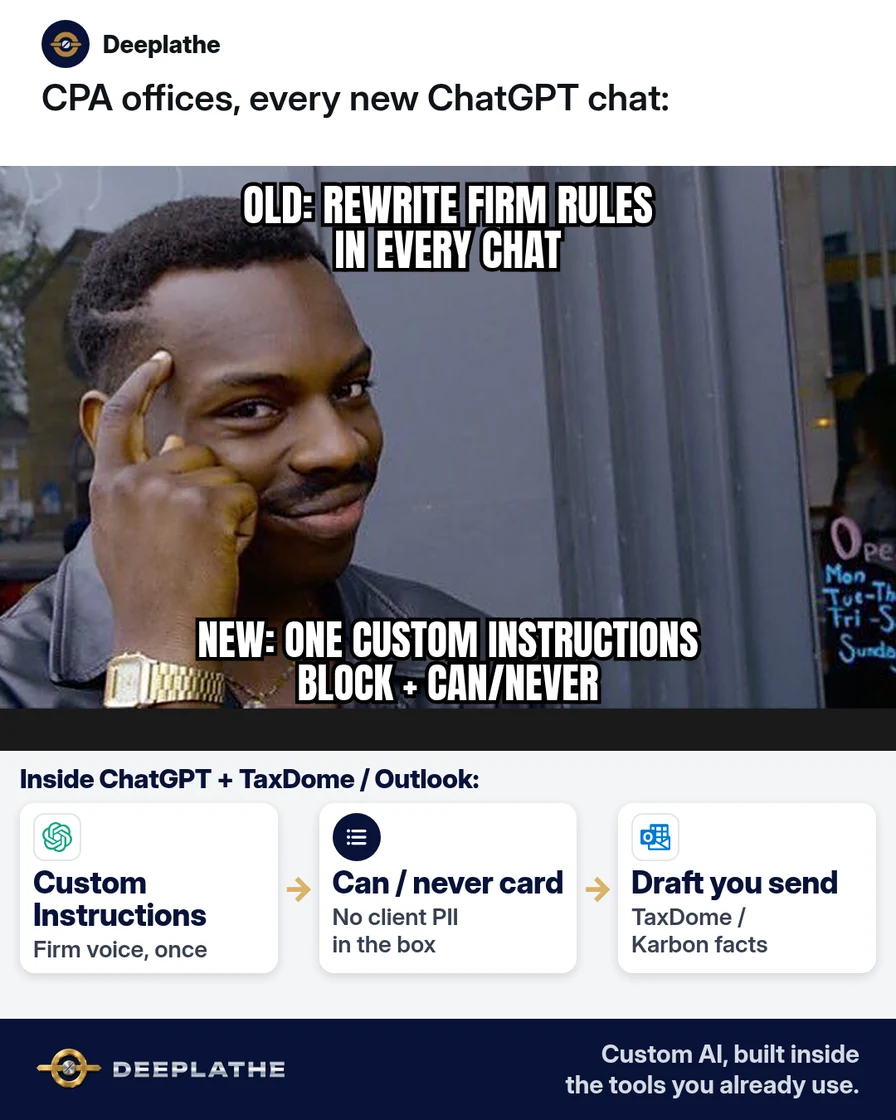
Tuesday morning, an associate opens a fresh ChatGPT chat to draft a document request. The first version sounds like a marketing blog. They paste the engagement letter again, rewrite the tone rules again, and burn fifteen minutes before the email is even close. That loop is why “chatgpt custom instructions for business” keeps getting searched.
The short answer
(Same rule as Everyday; paths and limits below are the operational detail.)
Put your firm’s stable rules in ChatGPT Custom Instructions once (Settings → Personalization → Custom Instructions, Enable customization ON), then keep client facts out of that box. Free and Go plans allow up to 1,500 characters; Plus, Pro, Business, Enterprise, and Education allow up to 5,000, per OpenAI Help. Use Projects for matter-specific files. You still review and send every client message yourself.
Why chatgpt custom instructions for business keeps getting searched
Owners want ChatGPT to sound like the firm on the first try. GPT-6 rolling wider in ChatGPT (OpenAI, early October 2026) did not remove that need: a smarter model still reverts to generic tone when you never saved firm rules. Autocomplete still clusters around “chatgpt custom instructions for business,” “for work,” and “examples” because people are hunting for a paste-ready block, not another abstract tip.
AI solves the re-paste tax. One account-level instruction block drafts client emails in firm voice in seconds. That is faster than rebuilding context every chat, cheaper than buying a separate prompt-library product, and more profitable when partners stop rewriting associate drafts for tone alone.
Floor vote
When do you rewrite firm rules in a new ChatGPT chat?
One vote per device. Change it any time.
Loading votes…
Step 1: Open Custom Instructions and confirm the character limit
In ChatGPT on web or desktop: open Settings → Personalization → Custom Instructions. Turn Enable customization ON. On iOS/Android the path is Settings → Customize ChatGPT (labels can vary; follow what your account shows). OpenAI Help states Free and Go users can save up to 1,500 characters; Plus, Pro, Enterprise, Business, and Education users can save up to 5,000.
Paste this starter into a Docs scratch file first so you can trim to your limit:
I draft for a US CPA / tax firm (multi-office, owner-led).
Write plain, direct sentences. No hype, no emojis, no invented claims.
Put the requested draft first. Then list anything I must check.
Preserve names, dates, amounts, and commitments I provide.
If a missing fact would change the draft, ask one focused question — do not guess.
For client messages: warm, professional; never promise refunds, fees, filing dates, or outcomes I have not authorized.
Leave [AMOUNT], [DATE], [CLIENT], [FORM] as blanks when unknown.
Never invent IRS notices, deadlines, or penalty amounts.
Count characters before you save. Prefer short checkable rules over adjectives.
Mechanics note: Prefer a Docs scratch buffer before saving into the product UI so you can diff character counts and keep a version history the vendor UI may not offer.
Step 2: Keep client data out of Custom Instructions
Custom Instructions apply across chats. Do not paste client names, SSNs, EINs, bank details, or a live fee schedule into that box. Keep those in the chat (redacted) or in a Project with scrubbed templates. OpenAI Help notes that information from custom instructions use can also be used to improve model performance unless you opt out of that data use — treat the box like anything left on a shared screen.
Can / never card for the office:
CAN go in Custom Instructions: tone, format, “ask before promising”, blank tokens, industries we serve in general.
NEVER in Custom Instructions: client PII, open matter facts, passwords, full price lists, engagement letter text with names.
Step 3: Save, then test in a fresh chat
Save Custom Instructions. Open a new chat (updates apply to future behaviour; OpenAI Help). Run this paste-ready test with fake details only:
Draft a short email asking a business client to upload last year’s W-2s and a P&L into our portal.
Client first name: [Alex]
Portal name: [portal]
Due: [DATE]
Max 90 words. Subject + body.
If the draft still invents deadlines or fees, tighten the “never invent” line and re-test. If it is too stiff, add one sentence on how you greet clients (first names, no “valued client”).
Step 4: Wire drafts into TaxDome, Karbon, Canopy, or Outlook — you still send
Custom Instructions do not replace UltraTax, Lacerte, Drake Tax, TaxDome, Karbon, or Canopy. Keep matter facts in those systems. Use ChatGPT to draft the wording, paste into Outlook or Gmail, and send yourself.
Optional: for a recurring job (document chase, engagement letter wording), also create a ChatGPT Project with project instructions that override global Custom Instructions for that workspace — per OpenAI’s Projects help. Global Custom Instructions stay the firm-wide baseline.
Save once, reuse daily
- 1Character limitFree/Go 1,500; paid up to 5,000
- 2Firm rules onlyTone, blanks, never-rules
- 3New chatOld threads won't rewrite
- 4You still sendOutlook / TaxDome
- Before you save, trim to the plan limit: Free/Go 1,500; paid tiers up to 5,000 (OpenAI Help).
- After you save, test in a new chat: old chats will not rewrite themselves.
- When a client fact is needed, put it in the chat redacted: never in the global box.
- When the job needs files, use a Project: instructions there override global ones inside that Project.
Example (illustrative): a 12-person multi-office CPA firm
At a glance
- Problem: Associates rewrote tone rules in every ChatGPT chat; partners spent evenings fixing “marketing voice” document requests.
- What was set up: One Custom Instructions block (about 900 characters) plus a can/never card on the shared drive.
- Tools it lives in: ChatGPT Plus seats, TaxDome for uploads, Outlook for send.
- What the owner still does: Approves any email that mentions fees, deadlines, or notices.
- Payoff: not measured here — track minutes from blank chat to approved draft for one week before/after.
Mistakes to avoid
- Pasting the full engagement letter into Custom Instructions. It burns the character limit and can include client-specific language that should not apply to every chat.
- Leaving Enable customization OFF. Instructions do nothing until the toggle is on (OpenAI Help).
- Expecting old chats to change. Updates apply going forward; clear or ignore old threads if they still show old behaviour.
- Letting AI decide filing dates or penalty amounts alone. Those stay human-checked.
- Using one personal Free chat for all client work with Memory on and no rules. Fix instructions first; then see the Memory article in Related reading.
Field check
Field check
Three questions. Honest answers. No score sent anywhere but this page.
01 / 03
Custom Instructions character limit on Free/Go is about…
If it still doesn't work
If drafts stay generic, your instructions are mostly adjectives (“professional, helpful”). Replace them with concrete offers, blank tokens, and never-rules. If the feature is missing, confirm you are on a ChatGPT plan that shows Personalization and that workspace admin settings allow it for Business/Enterprise. If character limit errors appear, trim the Docs draft and save again.
Doing this inside the tools you already use
If you would rather not maintain Custom Instructions, Project kits, and redaction rules by hand across the firm, Deeplathe can build custom AI around how your office already works — TaxDome or Karbon tasks, Outlook drafts, and the same can/never rules — so the owner stays in control of what goes out. That is a build inside your existing systems, not another app to log into. Most firms start with one workflow (document chase or engagement wording) and keep send authority with a person.
FAQ
What are ChatGPT custom instructions for business?
They are account-level (or workspace-allowed) instructions ChatGPT considers in responses. OpenAI Help: they apply immediately across chats, are available on all plans on Web, Desktop, iOS, and Android, and you can edit or delete them anytime.
How long can ChatGPT custom instructions be?
Free and Go: up to 1,500 characters. Plus, Pro, Enterprise, Business, and Education: up to 5,000 characters (OpenAI Help, checked 14 Oct 2026). Re-check Help if your UI shows a different cap.
Do custom instructions override Project instructions?
No — inside a Project, project instructions override global custom instructions (OpenAI Projects help). Put firm-wide tone in Custom Instructions; put job-specific kits in the Project.
Should I put client names in custom instructions?
No. Keep Custom Instructions free of client PII and open-matter facts. Put redacted facts in the chat or scrubbed files in a Project.
Will updating instructions change old chats?
OpenAI Help: updates apply to future conversations. Previous versions can still appear in older chat history until you clear those chats.
Keep these
- Enable customization ON, then paste short checkable rules.
- Never put client PII in the global box.
- Test in a fresh chat after every edit.
- You still send — ChatGPT only drafts.
Sources
- ChatGPT Custom Instructions (OpenAI Help)
- Projects in ChatGPT (OpenAI Help)
- GPT-6 and Intelligent UI for everyone (OpenAI, 7 Oct 2026)
Related reading
Keep these
The working rules
Put your firm’s stable rules in ChatGPT Custom Instructions once (Settings → Personalization → Custom Instructions, Enable customization ON), then keep client facts out of that box.