Invoices
QuickBooks automatic invoice reminders: how to set them up for net-30 customers
For job shops on net-30: QuickBooks Online reminder settings, the conditions they need to fire, and an Intuit Intelligence automation with approval for 30+ days overdue.
Your shop shipped a run of brackets on the 2nd, and the invoice went out of QuickBooks the same afternoon, net 30. Day 30 comes and goes. Then day 45. The customer's accounts payable clerk isn't ignoring you. Your invoice is one of hundreds in their queue, and nothing nudged it. You don't have time to chase it between quoting RFQs and running the floor. QuickBooks automatic invoice reminders can handle the first rounds for you.
The short answer
QuickBooks Online supports three automatic reminders per invoice, each offset up to 90 days before or after the due date, configured under Settings, Account and settings, Sales, Reminders. They fire only for unpaid invoices already emailed from QuickBooks, so delivery address and send channel decide whether any of this works. For the long tail, an Intuit Intelligence Custom Automation flags invoices past a threshold and waits for your approval before sending.
Why net-30 invoices drift past due
Business customers pay through a process. An invoice gets matched to a purchase order and a receiving record, approved, and then scheduled into a payment run. If anything is missing, like a PO number or the right contact, the invoice sits until someone asks about it.
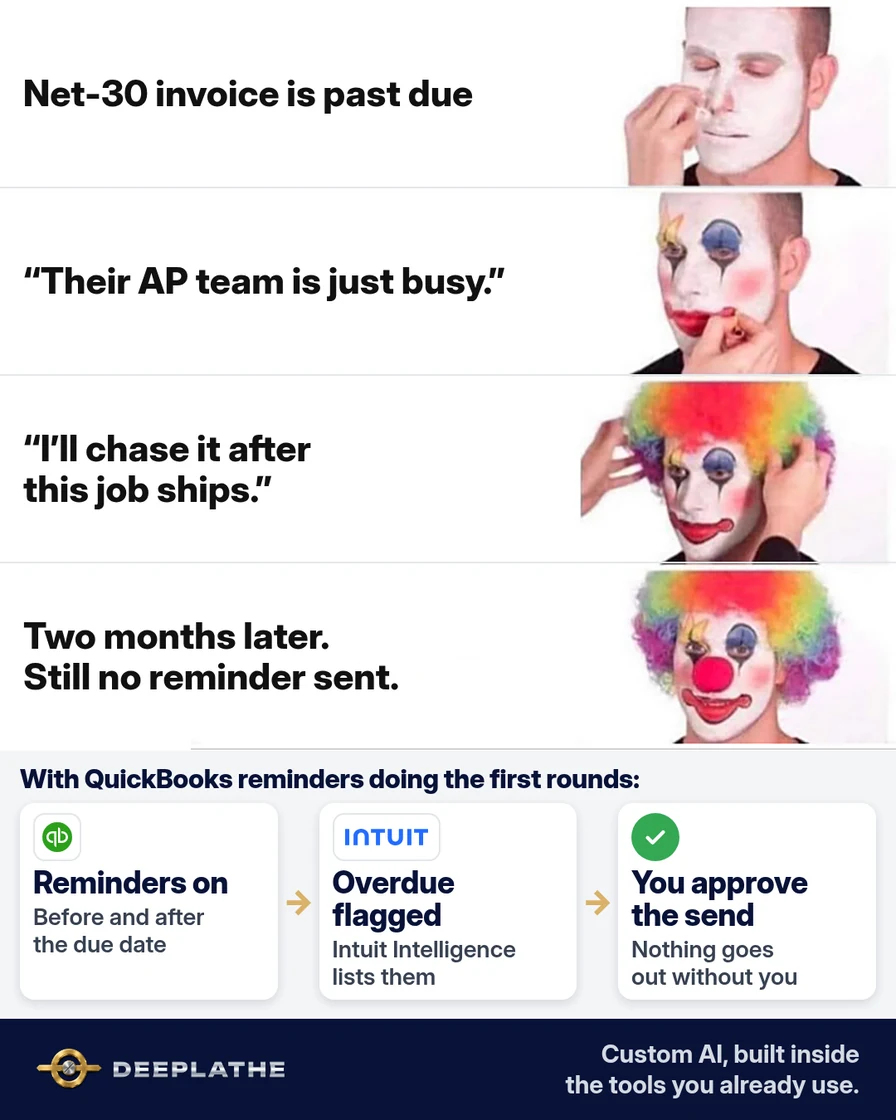
In a small shop, that someone is usually the owner, and chasing payments always loses to the job on the machine. So reminders go out late, or only when cash gets tight, and they come out sharper than they would have on day 3.
QuickBooks can send the routine reminders on a schedule, but the default text is generic, and it only works under certain conditions. Intuit's help article says QuickBooks sends reminders only for unpaid invoices you've already emailed from QuickBooks. The steps below set it up so the reminders actually go out, to the right inbox, with what AP needs.
Floor vote
How do your late invoices get chased today?
One vote per device. Change it any time.
Loading votes…
Step 1: Turn on QuickBooks automatic invoice reminders
Here is the path from Intuit's help center:
- Go to Settings (the gear) and select Account and settings.
- Select the Sales tab.
- In the Reminders section, select Edit.
- Turn on Automatic invoice reminders.
- Open Reminder 1 and turn on its toggle.
- Choose the number of days, and before or after the due date.
- Set up Reminder 2 and Reminder 3 the same way, then select Save and Done.
For net-30 business customers, this schedule is a sensible starting point:
Reminder 1:  3 days BEFORE the due date    (a heads-up to AP)
Reminder 2:  7 days AFTER the due date     (clear and specific)
Reminder 3: 21 days AFTER the due date     (firm, asks for a payment date)
QuickBooks lets you schedule each reminder up to 90 days before or after the due date.
Technical note: the offsets are relative to the invoice due date, not the invoice date, so the same three settings work for net 15, net 30 and net 60 customers. Intuit's community article says QuickBooks checks due dates a few times a day, so a reminder lands within the day it's due, not at a fixed hour.
Step 2: Write the three reminder messages with AI
The default message works, but it isn't written for an AP department. Paste this into ChatGPT, Claude, or Gemini:
Write three short invoice reminder emails from a small CNC machine shop
to a business customer's accounts payable team.
1) 3 days before the due date: friendly heads-up.
2) 7 days after the due date: clear, asks if anything is holding it up.
3) 21 days after the due date: firm and polite, asks for a payment date.
Each one must give AP everything they need to act without replying:
invoice number, amount, due date, PO number reference, and how to pay.
Use these blanks: [CUSTOMER], [INVOICE NUMBER], [AMOUNT], [DUE DATE],
[PO REFERENCE], [HOW TO PAY], [MY NAME], [PHONE].
Rules: under 100 words each. No threats, no legal language,
no late fees unless I add them. Keep "reminder" in each subject line.
Here is an example of the second one:
Subject: Reminder: invoice [INVOICE NUMBER] is past due
Hi [CUSTOMER] accounts payable team,
Invoice [INVOICE NUMBER] for [AMOUNT] was due on [DUE DATE]. The PO number
is on the invoice ([PO REFERENCE]). If anything is holding it up, such as a
missing receiving record, reply and we'll sort it out the same day.
How to pay: [HOW TO PAY]
[MY NAME], [PHONE]
Back in Reminders, paste each message into its reminder, keep "reminder" in the subject line as Intuit recommends, and swap the blanks for QuickBooks' own variables where they exist, like Invoice Number and Company Name. If QuickBooks doesn't offer a variable for something, like your PO number, make sure it's printed on the invoice itself and point to it.
Step 3: Make sure the reminders can actually go out
Three checks catch most of the reasons reminders never send:
- The invoice was emailed from QuickBooks. Intuit says reminders only go for invoices you've already emailed. If you print invoices or upload them to a customer's supplier portal, these reminders won't cover them.
- The email address is the AP inbox. Open each business customer and confirm the email is the accounts payable address they asked you to use, not the buyer who sent the PO.
- You know who you can't exclude. Intuit's community version of the article says you can't exclude specific customers from automatic reminders. If a customer is on an agreed payment plan, tell them a reminder may still arrive, or turn reminders off while the plan runs, knowing that turns them off for every customer.
Then test it. Create a test customer with your own email, send yourself an invoice dated so Reminder 1 is due tomorrow, and check your inbox. Intuit notes QuickBooks checks invoice due dates a few times a day, so give it a day.
Technical note: the eligibility rule (unpaid and emailed from QuickBooks) is the most common silent failure. An invoice exported to PDF and uploaded to a supplier portal, or mailed, is never in the reminder set, even though it shows as open in your aging report.
Step 4: Let Intuit Intelligence flag the long-overdue invoices
Reminders 1 to 3 run on their own. The ones that are still unpaid after that need your judgment. If your QuickBooks Online plan includes Intuit Intelligence, open it and type a request like this:
Create an automation that reminds me to follow up on invoices
that are more than 30 days overdue.
According to Intuit, the automation flags matching invoices in the Needs attention section of your QuickBooks homepage. Select Review, choose the invoices you want, and select Send reminders. QuickBooks uses your standard reminder template from your settings.
Intuit also says Custom Automations wait for your review and approval before any outward-facing action, and that you need to be a Primary Admin or Company Admin to create one. It isn't on every plan. If you don't see Intuit Intelligence, Steps 1 to 3 still work on their own.
QuickBooks reminder schedule for net 30
- -3 daysReminder 1Heads-up to AP
- +7 daysReminder 2What's holding it up?
- +21 daysReminder 3Ask for a pay date
- +30 daysFlagged for youReview, then send or call
The same schedule as a list:
- 3 days before due, Reminder 1: a friendly heads-up with the PO reference.
- 7 days after due, Reminder 2: asks what's holding it up.
- 21 days after due, Reminder 3: asks for a payment date.
- 30+ days after due, flagged for you: Intuit Intelligence lists them, and you decide whether to send or call.
Technical note: this is human-in-the-loop by design. The automation produces a review queue in Needs attention, and the send action reuses the standard reminder template from settings, so the wording you wrote in Step 2 carries through.
Example (illustrative): a job shop on net-30 terms
This is a walkthrough, not a client story. Picture a 30-person job shop that invoices from QuickBooks Online, mostly net 30 to manufacturers with their own AP teams.
The office manager turns on three reminders at minus 3, plus 7 and plus 21 days, and pastes in AP-friendly messages. She updates customer emails to each AP inbox and makes sure the PO number prints on every invoice. The owner asks Intuit Intelligence to flag anything more than 30 days overdue, and reviews that list on Monday mornings.
At a glance
- Problem: net-30 invoices drifting to 45 days with nobody asking.
- What was set up: three automatic reminders, AP-ready wording, and a flag for long-overdue invoices.
- Tools it lives in: QuickBooks Online and Intuit Intelligence, plus a chat tool for the wording.
- Owner still does: reviews the 30-day list, makes the calls, decides on credit holds.
- Payoff: not measured here. Watch your accounts receivable aging report month over month.
Mistakes to avoid
- Leaving the default text. Write for AP, with the invoice number and PO reference.
- Sending invoices outside QuickBooks and expecting reminders. They only cover invoices emailed from QuickBooks.
- Reminding the buyer instead of AP. The buyer can't pay you.
- Adding late fees your terms don't include. Only mention a fee that's in your agreement.
- Letting AI decide on credit holds or stopping shipments. That's a customer relationship call for you.
Field check
Field check
Three questions. Honest answers. No score sent anywhere but this page.
01 / 03
Are automatic invoice reminders turned on in your QuickBooks?
If it still doesn't work
If a customer says they never got a reminder, check the email on their customer record, and ask whether your messages land in spam. If an invoice was paid but reminders still went out, the payment probably wasn't recorded against that invoice. Match it in QuickBooks and the reminders stop.
When an invoice reaches 30 days past due with no answer, call AP. Ask one question: "What's the status of invoice [number], and is anything missing?" The answer is usually a missing PO, a receiving mismatch, or a wrong address. Fix it on the call.
Under the hood
The setup splits receivables follow-up into a deterministic part and a judgment part.
- Deterministic. Reminders 1 to 3 are due-date offsets applied to an eligible set: unpaid invoices that were emailed from QuickBooks. That set is the reason the checks in Step 3 matter more than the wording.
- Judgment. Anything past 30 days goes through a Custom Automation that flags and waits. Intuit states that outward-facing actions wait for review and approval, and that creating one needs Primary Admin or Company Admin rights.
- Exceptions. Intuit's community article says specific customers can't be excluded from automatic reminders. Payment plans and disputed invoices therefore need a human note, not a rule.
- Payload. AP teams pay against a match of invoice, PO and receiving record. A reminder that carries the invoice number and points to the PO on the invoice removes the most common reason for a reply instead of a payment.
Doing this inside the tools you already use
Deeplathe is a team of developers who build custom AI inside the tools a business already runs. For this job, a custom build could read your QuickBooks aging report each morning and draft a reminder for each overdue invoice. Each one names the right PO and the AP contact that customer actually uses. It flags problems like a missing PO before anything goes out. You approve, it sends, and the note goes on the customer.
QuickBooks keeps doing what it already does well, and the exceptions come to you ready to decide. See how a custom build works.
FAQ
Does QuickBooks send automatic payment reminders?
Yes. QuickBooks Online can send up to three automatic invoice reminders, set under Settings, Account and settings, Sales, Reminders. Each one can go out up to 90 days before or after the due date. Intuit says they only go for unpaid invoices you've already emailed from QuickBooks, and QuickBooks checks due dates a few times a day.
How many automatic invoice reminders can QuickBooks send?
Three per invoice: Reminder 1, Reminder 2, and Reminder 3. You choose the days and whether each goes before or after the due date, and you can write a different subject and message for each. For net-30 business customers, try 3 days before the due date, 7 days after, and 21 days after.
How do I turn off automatic invoice reminders in QuickBooks?
Go to Settings, Account and settings, then the Sales tab. In Reminders, select Edit and turn off Automatic invoice reminders, or turn off just one of the three. Intuit's community article says you can't exclude a single customer, so turning reminders off is the way to stop them during a payment plan.
Can QuickBooks remind me instead of the customer?
Yes, if your plan includes Intuit Intelligence. Ask it to create an automation that reminds you about invoices more than a set number of days overdue. Intuit says matching invoices are flagged in Needs attention on your homepage, and you choose which ones get a reminder. Nothing goes to the customer until you send it.
Keep these
- Three reminders: before, a week after, three weeks after.
- Write every reminder so AP can pay without replying.
- Email invoices from QuickBooks, to the AP inbox.
- The long-overdue list is yours to decide.
Sources
- QuickBooks Online Help: Send invoice reminders automatically or manually
- QuickBooks Online Help: Automate invoices with Intuit Intelligence
- QuickBooks Online Help: Automate tasks with Custom Automations
- QuickBooks Community: Send invoice reminders automatically or manually
Related reading
Keep these
The working rules
Due-date-relative reminders on emailed, unpaid invoices only; an approval-gated Custom Automation for the long tail.